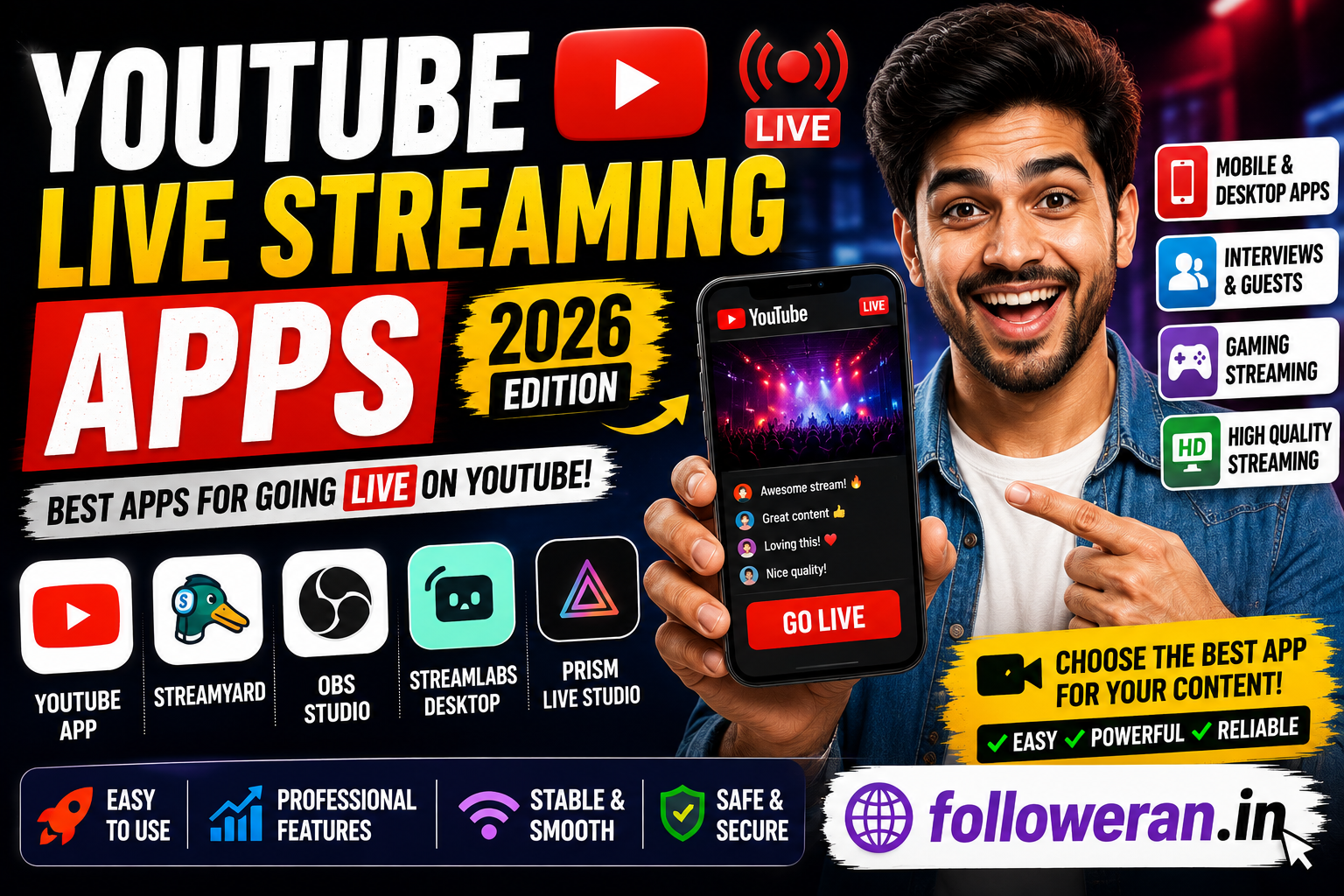
YouTube Live Streaming Apps: Best Apps for Going Live in 2026
If you want to live stream on YouTube, the right app can make a major difference. Some creators only need their phone camera and microphone, while gamers, educators, businesses and professional creators may need overlays, multiple cameras, guests, screen sharing or advanced scene controls.
YouTube officially supports several ways to stream, including mobile, webcam, encoder and console streaming.
This guide covers the main types of YouTube live streaming apps, what they're best for and how to choose one.
What Is a YouTube Live Streaming App?
A YouTube live streaming app is software that allows you to broadcast live video to your YouTube channel.
Depending on the application, you may be able to use:
- Smartphone cameras
- External microphones
- Screen sharing
- Multiple scenes
- Graphics and overlays
- Background effects
- Guest interviews
- Alerts
- Chat management
- Multiple streaming destinations
The best option depends on the type of content you want to broadcast.
Best YouTube Live Streaming Apps
1. YouTube App
For straightforward mobile streaming, the official YouTube app is the simplest starting point.
You can create or schedule a mobile live stream directly from the app. YouTube's current mobile requirements include at least 50 subscribers, a verified channel, no live-streaming restrictions within the previous 90 days and live streaming enabled on the channel. The first mobile stream may require up to 24 hours to activate.
Best for:
Vlogging, announcements, Q&A sessions and simple mobile broadcasts.
2. StreamYard
StreamYard is a browser-based live streaming studio designed to make live broadcasts easier to manage.
It is particularly useful for creators who want to bring guests into a broadcast without dealing with a complicated production setup. Its current YouTube-focused guide positions it as a practical option for creators who want quick setup and guest-friendly streaming.
Best for:
- Interviews
- Podcasts
- Webinars
- Business broadcasts
- Guest shows
3. OBS Studio
OBS Studio is a popular option for creators who want detailed control over their live production.
It is particularly suitable when you need:
- Multiple scenes
- Screen capture
- Camera sources
- Custom layouts
- Advanced audio configuration
- Gaming streams
YouTube itself describes encoder-based streaming as useful for gameplay, overlays, multiple production elements and higher-production broadcasts.
Best for: Gaming, tutorials, professional broadcasts and advanced creators.
4. Streamlabs
Streamlabs is another popular streaming platform aimed particularly at creators and gamers.
It can be useful when you want a more creator-focused streaming workflow with elements such as scenes, alerts and overlays.
Best for: Gaming, creator streams and interactive broadcasts.
5. PRISM Live Studio
PRISM Live Studio is designed around mobile and desktop live production and can be useful for creators who want more visual effects and production features than a basic camera app provides.
Best for: Mobile creators, gaming, visual content and interactive streams.
YouTube Live Streaming Apps Compared
| App / Method | Best For | Ease of Use | Advanced Controls |
|---|---|---|---|
| YouTube app | Simple mobile streams | ⭐⭐⭐⭐⭐ | ⭐⭐ |
| StreamYard | Interviews & guests | ⭐⭐⭐⭐⭐ | ⭐⭐⭐ |
| OBS Studio | Advanced streaming | ⭐⭐⭐ | ⭐⭐⭐⭐⭐ |
| Streamlabs | Gaming & creators | ⭐⭐⭐⭐ | ⭐⭐⭐⭐ |
| PRISM Live Studio | Mobile visual streaming | ⭐⭐⭐⭐ | ⭐⭐⭐⭐ |
Features and availability can change, so check the current provider documentation before choosing an app.
Which YouTube Live Streaming App Is Best for Mobile?
If you want to go live from your phone quickly, the official YouTube app is the most straightforward option.
For creators who want additional effects, layouts or production features, a third-party mobile streaming application may be more suitable.
Your choice should depend on whether you need:
- Camera effects
- Screen sharing
- Multiple sources
- Graphics
- External audio
- Chat tools
- Gaming support
Which App Is Best for YouTube Gaming?
Gaming creators often need more than a basic camera stream.
A gaming setup may require:
- Game capture
- Webcam
- Microphone
- Alerts
- Chat
- Multiple scenes
- Custom overlays
Desktop encoder software such as OBS Studio or Streamlabs is generally better suited to this type of production.
YouTube specifically notes that encoder streaming is commonly used for gameplay, sporting events, concerts and conferences.
Which App Is Best for YouTube Interviews?
For interviews, podcasts and panel discussions, a browser-based studio such as StreamYard can be convenient because guest management is central to the workflow.
You can prepare:
- Intro screens
- Guest layouts
- Lower thirds
- Questions
- Branding
- Closing screens
This can make a live interview feel more professional.
What Do You Need for YouTube Live Streaming?
Your requirements depend on the streaming method.
For mobile streaming, YouTube currently requires a verified channel, no recent live restrictions and at least 50 subscribers, along with supported device requirements.
For desktop streaming, YouTube supports webcam and encoder workflows.
You should also have:
- Stable internet
- A good microphone
- Adequate lighting
- A suitable camera
- A quiet environment
- A prepared stream title
- A thumbnail
- A description
- Moderation settings
How to Improve YouTube Live Stream Quality
Use a Good Microphone
Viewers may tolerate average video quality more easily than poor audio.
Test Your Internet
An unstable connection can cause buffering or stream interruptions.
Prepare Your Scenes
For advanced broadcasts, prepare your intro, main content and closing scenes before going live.
Test Before Broadcasting
YouTube recommends testing your setup so you're comfortable with the workflow before an important broadcast.
Monitor Audio and Video
During an encoder-based broadcast, YouTube recommends continuously monitoring audio and video quality.
YouTube Live Streaming App for Android
Android users can stream directly through the YouTube app if their channel meets the applicable requirements.
YouTube currently lists Android 8.0+ among the supported mobile requirements on its mobile live-streaming help page.
Third-party apps can provide additional production features depending on the device and software.
YouTube Live Streaming App for iPhone
iPhone users can also create mobile live streams through the YouTube app when eligible.
YouTube's mobile instructions allow creators to enter stream details, schedule a stream, use screencasting and configure available live-chat options.
Can You Stream Your Phone Screen to YouTube?
Yes. YouTube's mobile live-streaming workflow includes a screencast option for eligible mobile streams.
This can be useful for:
- App tutorials
- Mobile gaming
- Software demonstrations
- Educational content
- Troubleshooting videos
YouTube Live Streaming Requirements
Before planning your first stream, check your eligibility.
YouTube currently requires channels to have live streaming enabled, be verified and have no relevant live-streaming restrictions within the previous 90 days. YouTube also states that creators must be at least 16 years old to live stream.
Mobile streaming has additional requirements, including the 50-subscriber minimum.
Because YouTube's policies and requirements can change, always verify the latest requirements before an important broadcast.
How to Choose the Best YouTube Live Streaming App
Ask yourself these questions:
Do I want to stream from my phone?
Start with the YouTube app or consider a mobile production app.
Do I need multiple scenes?
Consider an encoder such as OBS Studio.
Do I interview guests?
A browser-based studio may be more convenient.
Do I stream games?
Look for screen/game capture, overlays and audio controls.
Do I need professional production?
Choose software that supports multiple sources and detailed scene management.
Common YouTube Live Streaming Mistakes
Avoid these common problems:
- Going live without testing your microphone
- Using unstable internet
- Forgetting to prepare a thumbnail
- Not checking stream privacy
- Sharing private information
- Ignoring live chat moderation
- Using copyrighted content without permission
- Starting an important stream without a test broadcast
YouTube recommends being careful about personal information and channel access during live streams.
Frequently Asked Questions
What is the best YouTube live streaming app?
It depends on your needs. The YouTube app is convenient for basic mobile streaming, while OBS Studio, Streamlabs, StreamYard and other tools are better suited to more specialised workflows.
Can I live stream to YouTube from my phone?
Yes. Eligible creators can use the YouTube mobile app to start a live stream. Current mobile requirements include at least 50 subscribers, channel verification and no recent live restrictions.
Can I stream YouTube gameplay from my phone?
YouTube supports mobile live streaming and, for supported use cases, mobile screen casting and Playables.
Is OBS good for YouTube live streaming?
Yes. OBS is particularly useful for creators who need advanced scene, source and production controls.
Do I need expensive equipment to live stream?
No. YouTube notes that you don't need expensive equipment to get started. A phone, computer or webcam setup can be sufficient depending on the type of stream.
Can I test a YouTube live stream before going public?
Yes. YouTube recommends testing your setup, and creators can use private or unlisted options where appropriate.
Final Thoughts
The best YouTube live streaming app depends on what you're broadcasting.
For simple mobile streams, the official YouTube app is an easy starting point. For interviews, browser-based studios can simplify guest management. For gaming and professional broadcasts, encoder-based software offers much greater control.
Start with the simplest setup that meets your needs, test your audio and video before going live, and improve your production gradually.
