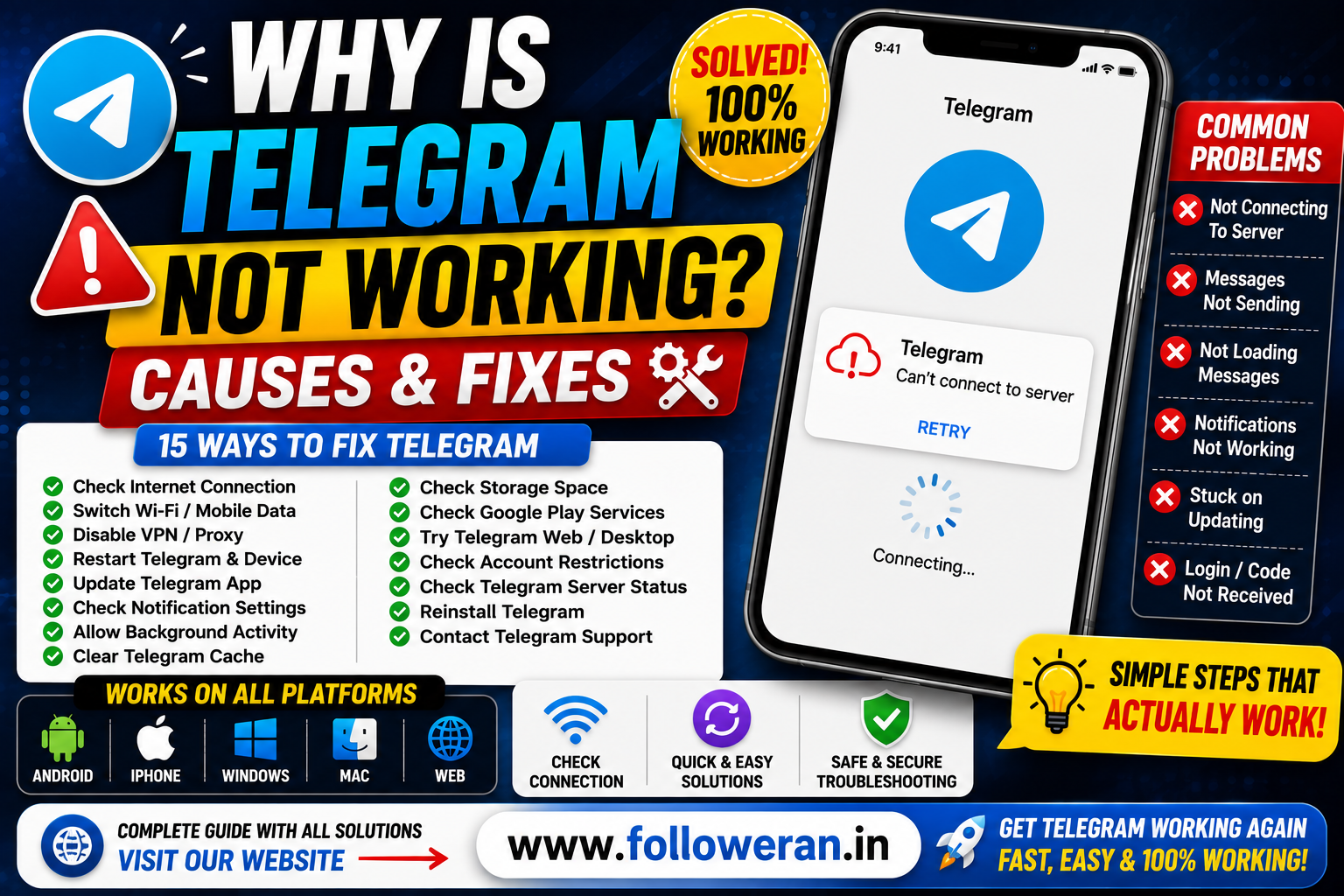
Why Is Telegram Not Working? 15 Ways to Fix Telegram on Android, iPhone & Desktop
If you're searching for “why is Telegram not working”, the problem could be caused by anything from a weak internet connection to an outdated app, notification settings, account restrictions, device settings or a temporary Telegram-side issue.
The exact symptom matters.
For example, Telegram opening but not sending messages is a different problem from Telegram not opening at all, while notifications not arriving can have a completely different cause.
Telegram's official FAQ includes troubleshooting guidance for login problems, notification issues, contacts, app behaviour and account access. Telegram also maintains a public bug-reporting system where users can see reported issues and their status.
This guide walks through the most common reasons Telegram may not be working and the practical steps you can take to troubleshoot the problem.
Why Is Telegram Not Working?
Common causes include:
- Weak or unstable internet
- Mobile-data restrictions
- Wi-Fi problems
- VPN or proxy issues
- Outdated Telegram app
- Device battery restrictions
- Notification settings
- Cache or storage problems
- Temporary app bugs
- Login or verification problems
- Account restrictions
- Telegram Web or Desktop issues
- A wider Telegram-side outage or service problem
The fastest solution is to identify which part of Telegram is actually failing.
First: Identify What Is Not Working
Before changing lots of settings, answer one question:
What happens when you open Telegram?
| Problem | Likely Area to Check |
|---|---|
| App won't open | App/device issue |
| Messages won't send | Internet, proxy or app connection |
| Messages won't load | Internet or sync issue |
| Notifications don't arrive | Notification/battery settings |
| Photos or videos won't load | Network/storage/settings |
| Login code doesn't arrive | Number/login issue |
| Telegram keeps saying “Updating” | Sync or app issue |
| Telegram Web doesn't connect | Browser/network/session issue |
| Account can't send messages | Possible account restriction |
This makes troubleshooting much faster.
1. Check Your Internet Connection
The first thing to test is your internet connection.
Open another website or app.
If other apps also fail to connect, Telegram may not be the real problem.
Try:
Wi-Fi → mobile data
or:
Mobile data → Wi-Fi
You can also turn Airplane Mode on for a few seconds and then turn it off.
If Telegram starts working after changing networks, the issue may have been related to the original connection.
2. Check Whether Your Network Is Blocking Telegram
Some networks can interfere with messaging services.
For example, Telegram documents that its connectivity can depend on network conditions, and its public issue tracker contains reports of regional blocking and connectivity problems.
To test this:
- Switch from Wi-Fi to mobile data.
- Try Telegram again.
- If possible, test another network.
- Compare the results.
If Telegram works on one network but not another, your device may be fine and the problem may be network-specific.
3. Turn Off VPN or Proxy Temporarily
A VPN or proxy can change the route between your device and Telegram.
If Telegram stopped working after you enabled a VPN or proxy, temporarily disable it and test again.
Telegram also supports proxy connections, so incorrect proxy configuration can affect connectivity.
Don't assume that every VPN is a problem; the purpose of this step is simply to isolate whether your current connection path is causing the issue.
4. Restart Telegram
A simple restart can fix temporary app problems.
Android
Open the recent-apps screen and remove Telegram, then launch it again.
iPhone
Force-close Telegram and reopen it.
Telegram's official troubleshooting guidance recommends relaunching the application for certain issues, including contact and app problems.
5. Restart Your Phone or Computer
If restarting Telegram doesn't help, restart the device.
This can clear temporary:
- Network connections
- Memory issues
- Background processes
- App-state problems
It is one of the simplest troubleshooting steps and costs nothing.
6. Update Telegram
An outdated app can contain bugs or compatibility problems.
Check your device's official app store and install the latest Telegram version available for your device.
Telegram supports mobile apps as well as Windows, macOS and Linux clients.
For Android, Telegram also publishes its own Android client through its website.
Use official sources when updating the app.
7. Check Your Phone's Battery Restrictions
Some Android devices aggressively restrict background applications.
This can make Telegram notifications appear delayed or stop arriving while the app isn't open.
Telegram's official FAQ specifically discusses notification problems caused by battery-saving software and notes that some device manufacturers apply aggressive background restrictions.
Check whether Telegram is allowed to:
- Run in the background
- Use mobile data in the background
- Send notifications
- Start automatically, where applicable
8. Check Telegram Notification Settings
Sometimes Telegram itself works perfectly, but notifications don't.
Open Telegram's notification settings and make sure notifications are enabled.
Then check your phone's system notification settings.
Telegram's official FAQ recommends checking both Telegram's notification settings and the device's notification settings. It also advises checking whether an individual contact or group has been muted.
Check These Areas
Telegram → Settings → Notifications
and
Phone Settings → Notifications → Telegram
Also check whether:
- Chats are muted
- Do Not Disturb is active
- Focus mode is enabled
- Battery optimisation is restricting Telegram
9. Check Google Play Services on Android
If you use Android and Telegram notifications are not working, make sure Google Play Services are installed and functioning.
Telegram's official FAQ specifically lists Google Play Services as one of the things to check for Android notification problems.
This is particularly relevant when notifications work inconsistently or stop arriving completely.
10. Clear the Telegram Cache
Cache files can occasionally contribute to app problems.
Telegram itself provides a cache-clearing option.
The official FAQ points users to:
Settings → Data and Storage → Storage Usage → Clear cache.
Clearing the cache is different from deleting your account.
It is a routine storage-management operation.
Why Clear Cache?
It can help when:
- Media behaves strangely
- Storage is running low
- The app becomes sluggish
- Temporary app data appears corrupted
Your cloud chats are not equivalent to the temporary cached files stored on your device.
11. Make Sure You Have Enough Storage
If your phone is almost full, apps may behave unpredictably.
Check your available storage.
If space is very low, remove unnecessary:
- Videos
- Photos
- Downloads
- Unused apps
- Large files
Then restart Telegram.
This is especially useful when the problem involves downloading or loading media.
12. Telegram Messages Are Not Sending
If Telegram opens but messages remain stuck, check these things first:
Internet
Try another network.
VPN or Proxy
Disable them temporarily.
App Version
Install the latest available version.
Temporary Connection Problem
Wait a few minutes and try again.
Account Restriction
If Telegram has restricted the account, the behaviour can be different from an ordinary connection failure.
Telegram says that frozen accounts can still read chats but cannot send messages or post content, and users can appeal directly from the app.
13. Telegram Messages Are Not Loading
If you can open Telegram but chats don't update:
- Check your connection.
- Switch networks.
- Disable VPN/proxy temporarily.
- Restart Telegram.
- Update the app.
- Restart the device.
If the problem persists, check whether other Telegram devices show the same issue.
Because Telegram synchronises cloud chats across devices, comparing behaviour on another logged-in device can help isolate the problem.
14. Telegram Is Stuck on “Updating”
A Telegram account can occasionally become stuck during synchronisation.
Telegram's public issue tracker contains reports of account-specific “Updating...” loops affecting official clients. One documented issue described an account-specific sync problem rather than a simple network failure.
Before assuming your account is permanently broken, try:
- Restarting Telegram
- Restarting your device
- Updating Telegram
- Testing another network
- Checking whether another Telegram device works
- Clearing cache where appropriate
If the problem affects only one account while another account works normally on the same device, that can be an important clue.
15. Telegram Notifications Are Not Working
This is one of the most common “Telegram not working” searches.
Use this checklist:
Android
Check:
- Telegram notifications
- Phone notifications
- Notification importance/behaviour
- Google Play Services
- Battery optimisation
- Autostart/background permissions where available
- Muted chats
Telegram's official FAQ provides specific troubleshooting steps for Android and notes that manufacturer battery-management tools can interfere with notification delivery.
iPhone
Check:
- Telegram notification settings
- iPhone notification settings
- Muted chats
- Focus/Do Not Disturb
- Telegram app state
Telegram also provides iOS-specific notification troubleshooting in its FAQ.
Telegram Not Working on Android
If you're using Android, follow this order:
1. Check internet
2. Disable VPN/proxy temporarily
3. Restart Telegram
4. Update Telegram
5. Check notifications
6. Check battery restrictions
7. Check Google Play Services
8. Clear cache
9. Restart the phone
If the problem remains, test Telegram on another network.
Telegram Not Working on iPhone
On iPhone, try:
1. Switch network
2. Disable VPN if enabled
3. Force-close Telegram
4. Update the app
5. Check notification permissions
6. Check Focus settings
7. Restart the iPhone
8. Try Telegram Web or another logged-in device
If only notifications are failing, concentrate on notification and Focus settings rather than reinstalling the app immediately.
Telegram Not Working on Windows or Mac
Desktop problems can come from:
- App version
- Internet connection
- VPN/proxy
- Local application state
- Firewall/network restrictions
- Temporary connection problems
Try:
- Close Telegram Desktop.
- Reopen it.
- Check your internet connection.
- Update Telegram.
- Temporarily disable VPN/proxy.
- Restart the computer.
- Test Telegram Web.
Telegram officially supports desktop applications for Windows, macOS and Linux.
Telegram Web Not Working
If Telegram Web doesn't load, test whether the mobile app works.
If Mobile Works But Web Doesn't
Possible causes include:
- Browser issue
- Browser cache
- Network restrictions
- Extension interference
- Session issue
Try:
- Another browser
- Private/incognito mode
- Temporarily disabling extensions
- Clearing site data
- Restarting the browser
- Checking the network
If Both Mobile and Web Don't Work
The issue is more likely to involve the account, network or broader Telegram connectivity.
Telegram Login Code Not Arriving
Login problems are different from ordinary connection problems.
Telegram's official FAQ says login problems can involve how the phone number is entered and where Telegram sends the login code. It recommends entering the number in international format and notes that, in some cases, a login code may be sent to Telegram on another connected device instead of via SMS.
Use the format:
+CountryCode + PhoneNumber
Also check other devices where you're already signed in.
Important: Never Share Your Telegram Login Code
Telegram states that login codes for your Telegram account should never be shared with other people, services or apps.
If somebody asks you to send them the code, don't do it.
Telegram Account Restriction
Not every “Telegram not working” problem is technical.
Telegram's FAQ describes frozen accounts that can still read chats but cannot send messages or post content. Telegram says users can appeal a restriction from within the app.
If Telegram works for browsing but you suddenly cannot send messages, consider whether the problem could be account-related.
How to Tell If Telegram Is Down
Sometimes the problem isn't your phone.
Possible signs of a wider service issue include:
- Telegram fails on multiple devices
- Multiple networks produce the same problem
- Messages remain stuck across devices
- Telegram Web and mobile fail together
- Other users report the same issue
Telegram maintains a public issue tracker where reported bugs and their status can be reviewed.
However, a single reported issue does not necessarily mean Telegram is experiencing a global outage.
Check Telegram on Another Device
This is one of the best diagnostic tests.
For example:
Phone doesn't work
but
Desktop works
That suggests the problem may be local to your phone, app or network.
If:
Phone + Desktop + Web all fail
the problem may be broader.
Check Telegram on Another Network
This is equally useful.
Works on Mobile Data
but:
Doesn't Work on Wi-Fi
The Wi-Fi/network may be the problem.
Works on Wi-Fi
but:
Doesn't Work on Mobile Data
Check mobile-data permissions, carrier connectivity or network restrictions.
Don't Reinstall Telegram Immediately
Reinstalling can help with some app problems, but it shouldn't be your first step.
Try these first:
Network switch
Restart
Update
VPN/proxy test
Notification check
Cache clearing
Storage check
Reinstallation may require another login, so it's sensible to troubleshoot the easier possibilities first.
When Should You Reinstall Telegram?
Consider reinstalling when:
- The app crashes repeatedly
- The installation appears corrupted
- Updating doesn't help
- Restarting doesn't help
- Cache clearing doesn't help
- The problem happens only inside the app
Before reinstalling, make sure you have access to your account's phone number and login method.
What Happens If You Log Out?
Telegram notes that cloud messages remain available after logging out, but Secret Chats are lost from the logged-out device.
That makes logging out a more significant step than simply restarting the app.
Don't log out casually when troubleshooting unless you understand this consequence.
Telegram Camera or Microphone Warning
Some users search for “why is Telegram not working” after seeing a device privacy warning involving the camera or microphone.
Telegram explains in its FAQ that certain Android device permission-monitoring systems can sometimes report background camera-related access while the app is handling an attachment or video-message request.
If you're seeing a privacy warning rather than a connectivity problem, read the device's permission details carefully before concluding that Telegram itself is malfunctioning.
Why Telegram May Work on One Device but Not Another
Because Telegram supports multiple simultaneously logged-in devices and synchronises cloud chats, device-specific differences can be useful diagnostic clues.
For example:
| Result | Possible Interpretation |
|---|---|
| Phone fails, desktop works | Phone/app/network issue |
| Desktop fails, phone works | Desktop/app/network issue |
| All devices fail | Account, network or broader service issue |
| Notifications fail only | Device notification settings |
| Messages fail only on Wi-Fi | Network-specific issue |
This doesn't prove the cause, but it narrows the possibilities.
Quick Telegram Troubleshooting Checklist
Try these in order:
1. Check internet
2. Switch Wi-Fi/mobile data
3. Disable VPN/proxy temporarily
4. Restart Telegram
5. Restart your device
6. Update Telegram
7. Check notifications
8. Check battery/background restrictions
9. Clear cache
10. Check available storage
11. Test another device
12. Test another network
13. Check for account restrictions
14. Check Telegram's current issue reports
15. Contact Telegram Support if necessary
Telegram provides an official support form for problems that aren't resolved through its FAQ.
Telegram Support
If you've tried the practical troubleshooting steps and still can't use Telegram, use Telegram's official support channel rather than an unofficial “account recovery” service.
Telegram's support page provides a form where you can describe the problem and provide the requested account information.
Avoid giving your login codes or passwords to third-party people claiming they can “fix” Telegram.
Common Mistakes When Fixing Telegram
Clearing the Wrong Thing
Clearing the app's cache is not the same as deleting account data.
Logging Out Too Quickly
Remember that Secret Chats can be lost from the logged-out device.
Sharing Login Codes
Telegram explicitly warns users not to share account login codes.
Assuming Every Problem Is an Outage
A device-specific network problem can look like a Telegram outage.
Ignoring Battery Restrictions
Aggressive background controls can interfere with notifications.
Downloading Unofficial Apps
Use Telegram's official apps and official channels whenever possible.
A Simple Decision Tree
Use this quick process:
Telegram Won't Open
→ Restart device
→ Update app
→ Check storage
→ Reinstall if necessary
Telegram Opens but Doesn't Connect
→ Check internet
→ Switch networks
→ Test VPN/proxy
→ Restart app
Messages Don't Send
→ Check connection
→ Test another network
→ Check for account restriction
→ Check whether other devices work
Notifications Don't Arrive
→ Check Telegram notifications
→ Check phone notifications
→ Check battery restrictions
→ Check muted chats
Telegram Web Doesn't Work
→ Try another browser
→ Disable extensions temporarily
→ Check network
→ Test mobile app
Login Code Doesn't Arrive
→ Check international phone format
→ Check another logged-in Telegram device
→ Use official recovery/support options
Frequently Asked Questions
Why is Telegram not working?
The cause can range from an unstable internet connection and VPN/proxy configuration to app bugs, notification restrictions, login problems, account restrictions or a wider Telegram-side issue.
Why is Telegram not working today?
A single user can't determine a platform-wide outage solely from their own device. Test Telegram on another network and another device, then check Telegram's current issue reports.
Why is Telegram not opening?
Restart the device, update Telegram, check available storage and try reinstalling the official app if the problem continues.
Why is Telegram not connecting?
Check your internet connection, switch networks, disable VPN/proxy temporarily and restart the app.
Why are Telegram messages not sending?
Check your network connection first. If the issue continues across networks and devices, check whether your account may be restricted. Telegram documents frozen accounts that cannot send messages or post content.
Why are my Telegram notifications not working?
Check Telegram's notification settings, phone notification permissions, muted chats, battery restrictions and, on Android, Google Play Services.
Why is Telegram not working on Android?
Check your internet, update the app, review battery and background restrictions, verify notification settings, check Google Play Services and clear the Telegram cache.
Why is Telegram not working on iPhone?
Check your connection, force-close Telegram, update the app and review notification and Focus settings. Telegram's FAQ provides iOS-specific notification troubleshooting steps.
Why is Telegram Desktop not working?
Restart Telegram Desktop, check your network, update the app, disable VPN/proxy temporarily and test Telegram Web or a mobile device.
Why is Telegram Web not working?
Try another browser, private browsing mode, disabling extensions, clearing site data and testing another network.
Why is Telegram stuck on Updating?
It can be caused by synchronisation problems, application issues or account-specific bugs. Telegram's public issue tracker includes documented examples of “Updating...” loops.
Why isn't my Telegram login code arriving?
Use the international phone-number format and check whether Telegram has delivered the login code to another connected device.
Can I clear Telegram cache?
Yes. Telegram's official FAQ provides a cache-clearing option under Settings → Data and Storage → Storage Usage → Clear cache.
Does clearing Telegram cache delete my chats?
Clearing cached files is different from deleting your cloud chats. Telegram specifically provides cache clearing as a storage-management option.
Should I log out of Telegram to fix it?
Not necessarily. Logging out can have consequences for Secret Chats on that device, so try simpler troubleshooting first.
Does reinstalling Telegram delete my account?
Reinstalling the app is not the same as deleting your Telegram account, but you may need to sign in again.
Why does Telegram work on Wi-Fi but not mobile data?
The mobile-data connection, permissions or carrier/network restrictions may be responsible. Test another app and review Telegram's mobile-data permissions.
Why does Telegram work on mobile data but not Wi-Fi?
Your Wi-Fi network, router, DNS, firewall or network restrictions may be involved. Testing another Wi-Fi network can help isolate the issue.
Is Telegram down for everyone?
Not necessarily. A local network, device or account issue can look like a service outage. Test multiple devices and networks and check Telegram's official issue reporting.
What should I do if Telegram is frozen or restricted?
Telegram says frozen accounts can still read chats but cannot send messages or post content, and users can appeal the restriction from the app.
Should I give my Telegram verification code to support?
No. Telegram says login codes for your account should never be shared with other people, services or apps.
Where can I contact Telegram Support?
Telegram provides an official support form where you can describe your problem.
Does Telegram work on multiple devices?
Yes. Telegram supports using the account on multiple phones, tablets and computers simultaneously, with cloud chats synchronised across devices.
Can Telegram problems be device-specific?
Yes. If Telegram works on one device but not another, the problem may be related to the affected device, app installation, permissions or network.
What is the safest way to fix Telegram?
Start with basic troubleshooting: connection, network switching, VPN/proxy testing, restart, update, notification checks and cache clearing. Use Telegram's official support channels for persistent account problems.
Final Thoughts
When you search “why is Telegram not working,” the most useful first step is to identify what exactly has stopped working.
Is the app not opening?
Are messages stuck?
Are notifications missing?
Is Telegram Web unavailable?
Is login failing?
Or can you read messages but not send them?
Once you identify the symptom, troubleshooting becomes much easier.
Start with the basics:
Check your internet
Switch networks
Disable VPN/proxy temporarily
Restart Telegram
Update the app
Check notifications
Review battery restrictions
Clear the cache
Test another device
Test another network
If the issue continues, check Telegram's official help resources and public issue tracker. Telegram documents troubleshooting for notifications, login, contacts and other problems, while its issue tracker provides visibility into reported technical problems.
For account-specific problems, use Telegram's official support rather than third-party people offering to “recover” or “unlock” your account.
And never share your Telegram login code or account credentials with anyone claiming they need them to fix the problem. Telegram explicitly warns users about this.
For more social-media, digital-marketing and online-platform guides, visit www.followeran.in.
