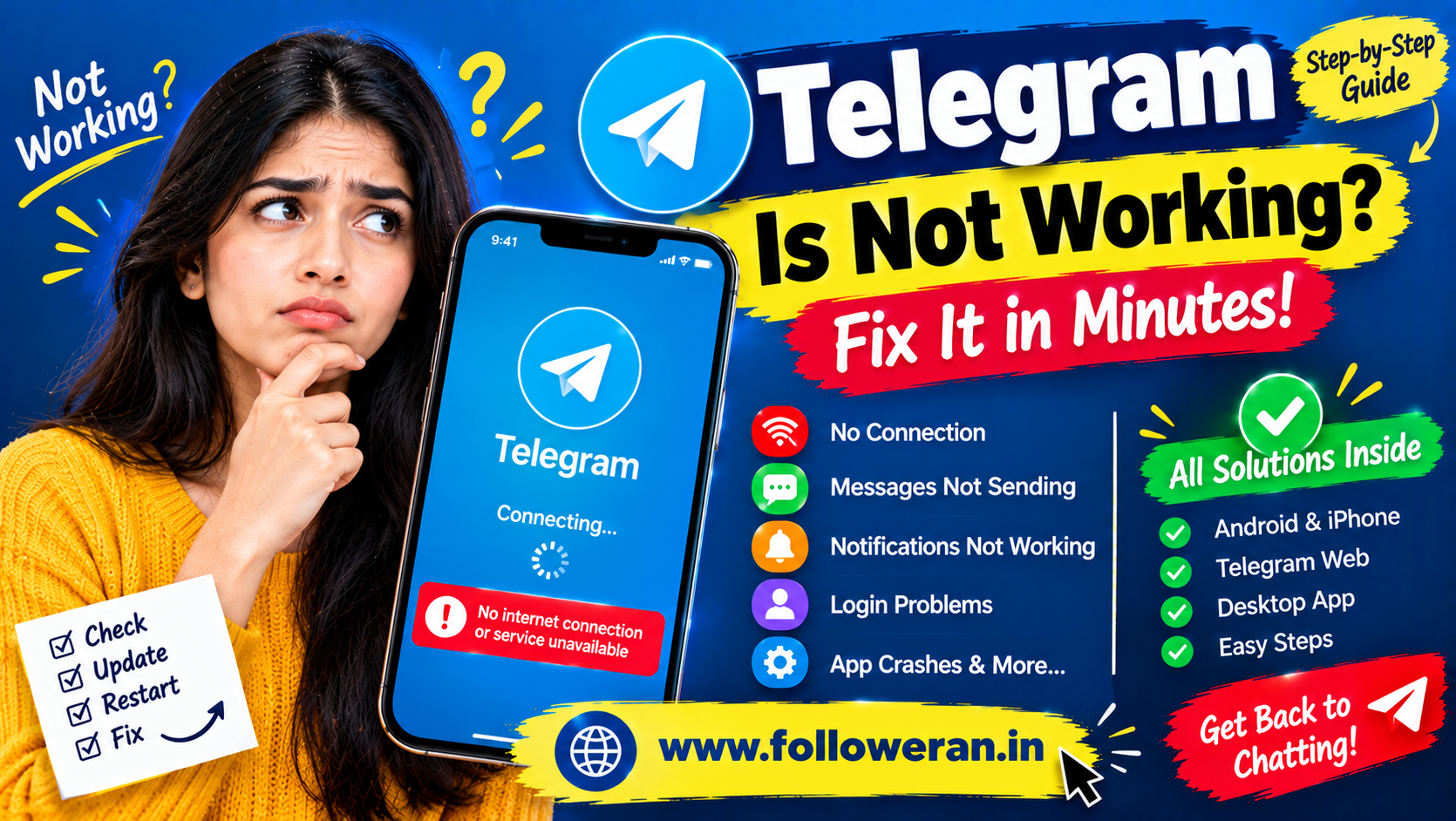
Telegram Is Not Working: 25 Ways to Fix Telegram Problems
When Telegram is not working, the problem can appear in several different ways.
You may see:
Telegram not connecting
Messages not sending
Chats not loading
Telegram not opening
Notifications not arriving
Photos and videos stuck
Telegram Web not working
Login code problems
Sometimes the cause is your internet connection or device. Other times, the issue may be with the Telegram app, permissions, cached data or a temporary service disruption.
The good news is that many Telegram problems can be fixed with a few simple checks.
This guide walks through the most common solutions from the easiest fixes to more advanced troubleshooting.
Why Is Telegram Not Working?
There is no single reason why Telegram stops working.
Common possibilities include:
Weak internet connection
Wi-Fi problems
Mobile-data restrictions
Temporary Telegram service issues
Outdated app version
Corrupted cache
Battery restrictions
Notification settings
Device permissions
Login problems
VPN or proxy configuration
DNS-related problems
Insufficient device storage
Temporary app bugs
The first step is to identify exactly what is failing.
Is Telegram Down or Is the Problem on Your Device?
Before changing complicated settings, determine whether Telegram itself is experiencing a service problem.
Try:
Telegram on your phone
and:
Telegram Web or another connected device
If Telegram fails everywhere, the problem may be service-side.
If it works on another device but not your phone, the issue is more likely related to your app, device, network or settings.
This simple comparison can save a lot of troubleshooting time.
1. Check Your Internet Connection
The first thing to check is whether your internet is actually working.
Open another website or app.
If other apps also fail, your connection may be the problem rather than Telegram.
Try:
Wi-Fi → Mobile data
or:
Mobile data → Wi-Fi
Then reopen Telegram.
2. Turn Airplane Mode On and Off
A quick network reset can sometimes resolve temporary connectivity problems.
Try:
Airplane Mode ON
wait a few seconds,
then:
Airplane Mode OFF
Reconnect to the internet and open Telegram again.
3. Restart Your Phone
A simple restart can resolve temporary:
Network issues
App processes
Memory problems
Background-service errors
Close Telegram and restart your device.
Then test the app again.
4. Force Close Telegram
Sometimes Telegram remains stuck in the background.
On Android or iPhone:
Close Telegram completely
then reopen it.
If Telegram was stuck on:
Connecting
or:
Updating
a complete restart may refresh the app session.
5. Update Telegram
An outdated application can cause compatibility problems.
Check your device's official app store and install any available Telegram update.
After updating:
Open Telegram
and test:
Messages
Calls
Media
Notifications
6. Check Telegram Notifications
If Telegram works but you are not receiving notifications, review notification settings.
Inside Telegram, check:
Settings → Notifications and Sounds
Make sure notifications are enabled for the relevant chats, groups and channels.
Also check your phone's own notification settings.
The app can be functioning normally while the operating system prevents notifications from appearing.
7. Check Whether the Chat Is Muted
Sometimes users think Telegram notifications are broken when only one conversation is muted.
Open the affected:
Chat
or:
Group
and check whether notifications have been disabled.
Also review:
Archived chats
because an important conversation may be stored there.
8. Check Battery Saver Settings
Battery-saving features can restrict background activity.
This can affect:
Notifications
Message syncing
Incoming calls
depending on the device.
If Telegram notifications arrive late, check whether your phone is applying aggressive battery optimisation to Telegram.
9. Check Mobile Data Permissions
On some devices, individual apps can be restricted from using mobile data.
If Telegram works on Wi-Fi but not mobile data, check:
Phone Settings → Apps → Telegram → Mobile Data
Make sure the appropriate network permissions are enabled.
10. Test Telegram on Wi-Fi and Mobile Data
This is one of the best ways to isolate the problem.
Works on Wi-Fi but not mobile data
The issue may involve:
Mobile-data permissions
Carrier connectivity
Data restrictions
Works on mobile data but not Wi-Fi
The issue may involve:
Router
DNS
Network restrictions
Wi-Fi configuration
11. Restart Your Wi-Fi Router
If Telegram is not working only on Wi-Fi, restart the router.
Disconnect power.
Wait briefly.
Reconnect it.
Then reconnect your device and test Telegram.
If other apps work while Telegram does not, continue with the next troubleshooting steps.
12. Check VPN or Proxy Settings
VPNs and proxies can sometimes affect app connectivity.
If you are using one, temporarily disconnect it and test Telegram.
Similarly, check Telegram's own proxy settings if you have configured one.
Do not use random proxy servers simply because Telegram is not connecting.
13. Check Telegram Proxy Configuration
A misconfigured proxy can cause:
Connecting
Updating
or:
No connection
issues.
Review the proxy settings in Telegram.
If you don't specifically need a proxy, test the app without one.
14. Clear Telegram Cache on Android
A large or problematic cache can occasionally contribute to app issues.
On Android, you can generally find cache controls through:
Settings → Apps → Telegram → Storage
Then use the available option to clear cached data.
Be careful not to delete important account data unnecessarily.
Clearing cache is different from deleting the application entirely.
15. Free Up Device Storage
If your phone is almost full, apps can behave unexpectedly.
Check available storage.
Remove unnecessary:
Videos
Downloads
Duplicate photos
Unused applications
Large files
Then restart Telegram.
16. Check Telegram's Media Download Settings
If Telegram messages work but photos or videos are not downloading, check:
Automatic Media Download
Mobile Data
Wi-Fi
Storage permissions
Sometimes the app works perfectly for text but cannot download media because a specific setting or device restriction is preventing it.
17. Telegram Messages Are Not Sending
If your messages remain stuck, first check the network.
Then ask:
Can I receive messages?
Can receive but cannot send
Possible causes include:
Temporary connection instability
Account restrictions
Chat-specific issues
App problems
Cannot send or receive anything
The problem is more likely:
Network
App
or:
Service-side connectivity
18. Check Whether Your Account Is Restricted
In some situations, Telegram accounts can be restricted because of reports or other enforcement actions.
A restricted or frozen account can have limited functionality.
If you believe the restriction is incorrect, use Telegram's official support and appeal mechanisms rather than relying on third-party “unban” services.
19. Telegram Is Not Opening
If Telegram immediately closes or crashes:
Restart the device
Then:
Update Telegram
If the issue continues:
Check available storage
Then:
Clear cache where supported
If the application is still crashing, reinstalling it may be the next troubleshooting step.
Before doing so, make sure you can access the phone number associated with your account.
20. Reinstall Telegram
Reinstalling can fix corrupted application files.
General process:
Uninstall Telegram
↓
Install the latest version
↓
Open Telegram
↓
Enter your phone number
↓
Complete verification
Be careful when logging out or reinstalling because certain locally stored or device-specific data may not be available afterward.
21. Telegram Login Code Not Arriving
If you cannot log in, first make sure your phone number is entered correctly, including the country code.
Also check whether the login code was sent through another Telegram session rather than SMS.
If you are already logged in on another device, check that device for the authentication message.
Never share Telegram login codes with another person.
22. Telegram Notifications Not Working on Android
Android devices can have aggressive background-management systems.
Check:
Telegram notifications ON
Battery optimisation
Background activity
Google Play services where applicable
Chat mute settings
Do Not Disturb
App notification permissions
On some Android phones, manufacturer-specific battery or task-management settings can interfere with notifications.
23. Telegram Notifications Not Working on iPhone
On iPhone, check:
Settings → Notifications → Telegram
Ensure notifications are enabled.
Also check:
Telegram → Settings → Notifications and Sounds
Then review whether:
Focus Mode
or:
Do Not Disturb
is preventing notifications.
Restarting Telegram can also refresh notification behaviour.
24. Telegram Web Is Not Working
If Telegram works on your phone but not in the browser, try:
Refresh the page
Open a private/incognito window
Clear browser cache
Disable problematic extensions
Try another browser
Check your internet connection
You can also compare Telegram Web with the desktop or mobile app.
If the mobile app works but the web version does not, the problem may be browser-specific.
25. Telegram Desktop Is Not Working
For Telegram Desktop:
Close the application
↓
Restart the computer
↓
Check the internet
↓
Update Telegram Desktop
↓
Test the web version
If Telegram works in the browser but not the desktop application, reinstalling or updating the desktop client may help.
Telegram Is Not Connecting
One of the most common complaints is:
“Telegram keeps saying connecting.”
Start with:
Step 1
Switch networks.
Step 2
Restart Telegram.
Step 3
Restart your phone.
Step 4
Disable VPN/proxy temporarily.
Step 5
Update Telegram.
Step 6
Check whether other devices can connect.
Step 7
Investigate whether there is a broader outage.
This sequence can identify whether the problem is local or service-related.
Telegram Stuck on Updating
If Telegram shows:
Updating…
for a long time, try:
Switching network
Restarting the app
Restarting the phone
Updating Telegram
Checking storage
Temporarily disabling VPN/proxy
Testing another device
If the same issue occurs across several devices and networks, the problem may not be specific to your phone.
Telegram Search Not Working
If Telegram opens normally but search does not work:
Check connection
Search requires the app to communicate with Telegram's servers.
Restart Telegram
Close and reopen the app.
Update the app
Use the latest version available to you.
Test another search
Try searching for a different username or phrase.
If only one item cannot be found, the issue may be related to that specific account, channel or content.
Telegram Contacts Not Showing
If your contacts appear incorrectly:
Update Telegram
Restart the app
Check contact permissions
Verify your phone's contact sync
On some devices, Telegram may not have permission to access contacts.
Check Telegram Permissions
Review your device settings for Telegram permissions such as:
Contacts
Notifications
Photos
Camera
Microphone
Mobile data
Only enable permissions you actually need.
Telegram Calls Not Working
If Telegram messages work but voice or video calls do not, check:
Internet stability
Microphone permission
Camera permission
Battery restrictions
VPN/proxy
Also test with both Wi-Fi and mobile data.
Telegram Photos Not Loading
If text works but images do not:
Check:
Network speed
Storage
Automatic media download
Telegram cache
Device permissions
A slow or unstable connection can make large media files appear stuck.
Telegram Videos Not Playing
Check:
Free storage
Network speed
App version
Media download settings
Device compatibility
Try downloading a smaller video to determine whether the problem affects all media or only large files.
Telegram Voice Messages Not Working
If you cannot record or listen to voice messages:
Check:
Microphone permission
Speaker volume
Bluetooth connection
Media volume
Telegram app permissions
A connected Bluetooth device can sometimes route audio away from the phone speaker.
Telegram Is Slow
If Telegram opens but feels unusually slow, possible reasons include:
Weak connection
Very large cache
Too many large downloaded files
Device storage limitations
Background applications
Outdated app
Try clearing cached data and removing unnecessary media.
Telegram Works but Notifications Arrive Late
This is often related to background restrictions.
Check:
Battery saver
Background activity
Notification permissions
Muted chats
Focus/Do Not Disturb
On Android, also review manufacturer-specific power-management settings.
Telegram Not Working After an Update
Sometimes a new app version can behave differently on certain devices.
Try:
Restart Telegram
Restart the phone
Check for another update
Clear cache
Review permissions
Avoid downloading unofficial Telegram APKs from random websites to solve an app problem.
Use trusted app distribution channels.
Telegram Not Working After Changing SIM
If you recently changed your SIM or phone number, make sure your Telegram account remains connected to a number you control.
Account access depends heavily on being able to authenticate the associated number.
Do not wait until you lose access to your old number before updating your account information.
Telegram Is Not Working on Mobile Data
If Telegram works with Wi-Fi but not mobile data, check:
Data permission
Make sure Telegram can use cellular data.
Data saver
Disable or adjust data-saving restrictions.
Mobile signal
Test another application.
Carrier restrictions
If other apps also fail, contact your mobile carrier.
Telegram Is Not Working on Wi-Fi
If Telegram only fails on Wi-Fi:
Restart your router
Try another Wi-Fi network
Disable custom DNS temporarily
Check VPN/proxy
Test mobile data
This helps determine whether your local network is responsible.
Telegram Is Not Working for Everyone
Sometimes the issue may be broader than your device.
Signs include:
Multiple devices fail
Multiple networks fail
Telegram Web also fails
Friends report similar problems
Messages remain pending everywhere
In that situation, repeatedly reinstalling the app may not solve anything.
Wait for the service issue to be resolved while avoiding risky unofficial “fix” tools.
How to Check for a Telegram Outage
Use multiple indicators.
Check another device
Does Telegram work elsewhere?
Check another connection
Try Wi-Fi and mobile data.
Check trusted outage reports
Look for reports from multiple independent users.
Check official Telegram channels or announcements
Major service issues may be communicated through official channels when appropriate.
The goal is to distinguish:
My device is broken
from:
The service is temporarily unavailable.
Should You Use a VPN When Telegram Is Not Working?
A VPN is not a universal solution.
It may help in certain network-routing situations, but it can also introduce another point of failure.
Before trying a VPN, test:
Different network
Normal connection
Mobile data
Wi-Fi
If the app works normally without the VPN, there may be no reason to use one.
Should You Change DNS?
Changing DNS can sometimes help with certain network-resolution problems, but it should not be the first troubleshooting step.
Start with simpler checks:
Connection
App update
Restart
VPN/proxy
Another network
Only move to advanced network changes when there is a specific reason.
Telegram Is Not Working Because of Cache
A large cache does not always mean Telegram will stop working, but clearing cached data can be useful when the app behaves strangely.
It can help with problems such as:
Media loading
App sluggishness
Display issues
Storage pressure
Use the built-in cache controls where available.
Telegram Is Not Working Because of Storage
Low device storage can affect application behaviour.
If your phone is nearly full:
Delete unnecessary files
Remove old downloads
Clear large media
Uninstall unused apps
Then restart Telegram.
Telegram Is Not Working Because of Permissions
Review permissions if a particular function fails.
For example:
Camera not working
Check camera permission.
Voice message not working
Check microphone permission.
Photos not uploading
Check photo/media access.
Contacts not syncing
Check contact access.
Permissions are usually controlled at the device level.
Telegram Privacy and Security Checks
When troubleshooting, avoid installing random:
“Telegram fixer” apps
“Telegram unban tools”
“Free proxy APKs”
“Login code generators”
These can create more serious security problems.
Telegram login codes are sensitive.
Never share them with someone claiming to be a support representative.
Telegram Support
If ordinary troubleshooting does not solve the problem, use Telegram's official support options.
Be prepared to explain:
Your device
App version
Exact problem
When it started
Whether Wi-Fi and mobile data both fail
Whether Telegram works on another device
Detailed information makes troubleshooting easier.
Quick Telegram Troubleshooting Checklist
| Problem | First Things to Try |
|---|---|
| Telegram not opening | Restart, update, clear cache |
| Not connecting | Change network, restart, check VPN/proxy |
| Messages not sending | Check connection and account status |
| Notifications missing | Check app/device notifications and battery settings |
| Media not loading | Check storage, cache and download settings |
| Login code missing | Check number and other logged-in devices |
| Telegram Web not working | Refresh, browser test, disable extensions |
| Desktop not working | Update, restart, test Web |
| Calls not working | Check permissions and network |
| App very slow | Clear cache and free storage |
10-Minute Telegram Fix Routine
When you need a quick troubleshooting process, follow this order:
1. Check another app
↓
2. Switch Wi-Fi/mobile data
↓
3. Force close Telegram
↓
4. Restart the phone
↓
5. Update Telegram
↓
6. Check notifications/permissions
↓
7. Disable VPN/proxy temporarily
↓
8. Clear cache where appropriate
↓
9. Test Telegram Web or another device
↓
10. Check whether the issue is widespread
This avoids changing complicated settings unnecessarily.
Common Telegram Troubleshooting Mistakes
Reinstalling immediately
Try simpler solutions first.
Changing multiple network settings at once
This makes it difficult to know which change actually helped.
Using random VPNs or proxies
Unknown network tools can create security and connectivity problems.
Installing unofficial APKs
Use trusted sources for Telegram software.
Sharing login codes
Never give authentication codes to strangers.
Assuming every problem is an outage
Test another network or device first.
Assuming every problem is your device
Check whether other users are experiencing the same problem.
Frequently Asked Questions
Why is Telegram not working?
The cause can be your internet connection, app version, permissions, cache, battery restrictions, VPN/proxy settings, account restrictions or a temporary Telegram service issue.
Why is Telegram not connecting?
Check your internet connection first, then switch between Wi-Fi and mobile data, restart the app, disable VPN/proxy temporarily and make sure Telegram is updated.
Why are my Telegram messages not sending?
A weak connection is a common possibility. Also check whether other Telegram features work and whether your account has any restrictions.
Why is Telegram not opening?
Restart your device, update Telegram and check storage. On Android, clearing the app cache can also help. If the problem continues, reinstall the official app.
Why are Telegram notifications not working?
Check Telegram's notification settings, your phone's notification permissions, muted chats, battery-saving settings and Do Not Disturb or Focus modes.
Why is Telegram not working on mobile data?
Check whether Telegram is allowed to use cellular data and whether your phone's data-saving settings are restricting the app. Compare the result with Wi-Fi.
Why is Telegram not working on Wi-Fi?
Restart the router, test another Wi-Fi network, temporarily disable VPN/proxy settings and compare with mobile data.
Why is Telegram Web not working?
Refresh the page, test another browser, disable problematic extensions and clear browser cache. Also check whether Telegram works normally on your phone.
Why is Telegram stuck on “Connecting”?
Test another network, restart Telegram, disable VPN/proxy temporarily, update the app and check whether the same problem occurs on another device.
Why is Telegram stuck on “Updating”?
A network problem, app issue or service-side problem can cause this. Try switching networks, restarting the app, updating Telegram and checking whether the problem happens on multiple devices.
Why is my Telegram login code not arriving?
Make sure your phone number is correct and check whether Telegram sent the code to another device where you are already logged in.
Can a VPN fix Telegram?
A VPN can sometimes change how your traffic is routed, but it is not a universal solution. Test normal connections first and avoid random or untrusted VPN services.
Should I change DNS when Telegram is not working?
DNS changes are an advanced troubleshooting step. Start with your network, app update, restart and VPN/proxy checks before changing DNS.
Can clearing Telegram cache fix problems?
It can help with some storage, media-loading or app-performance issues, particularly when cached data has become excessive.
Will reinstalling Telegram delete my account?
Reinstalling the app does not mean your Telegram account itself is deleted, but you may need to sign in again. Make sure you have access to the phone number associated with your account before reinstalling.
Is Telegram down when it doesn't work for me?
Not necessarily. Test another network, another device or Telegram Web. If the issue occurs across multiple connections and devices, a wider service problem becomes more plausible.
What should I do if Telegram is not working for everyone?
Avoid repeatedly changing your device settings. Check trusted outage information and official Telegram communications, then wait for the service issue to be resolved if it is confirmed to be widespread.
Can an SMM panel fix Telegram?
No. An SMM panel is unrelated to fixing Telegram's application or infrastructure. Problems such as connection, login, notifications or app crashes should be addressed through normal troubleshooting and official support.
Final Thoughts
When Telegram is not working, don't immediately assume that your account, phone or the entire Telegram service is broken.
Start with the basics:
Check your internet
Switch networks
Restart Telegram
Restart your device
Update the app
Check permissions
Review notifications
Disable VPN/proxy temporarily
Clear cache where appropriate
Test another device or Telegram Web
Then determine whether the problem is specific to your setup or appears to be a broader service issue.
Most importantly, avoid risky shortcuts. Never give your Telegram login code, password or sensitive account information to someone promising to “fix” your account.
For regular users, the best troubleshooting approach is:
Identify the exact problem → test the connection → isolate the device/app → apply one fix at a time → verify the result.
That makes it much easier to understand why Telegram is not working and get the app back to normal without creating additional problems.
