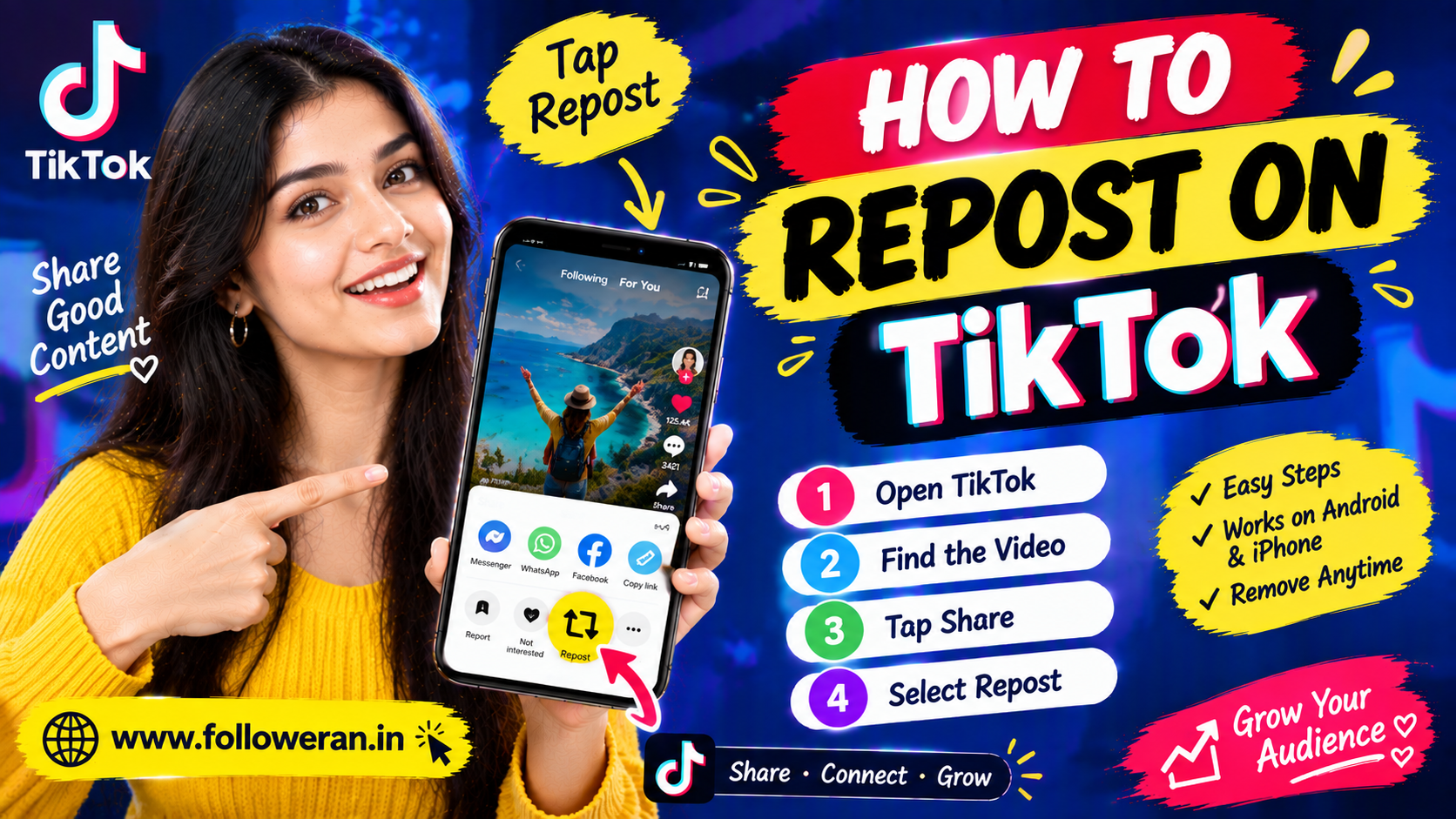
How to Repost on TikTok: Step-by-Step Guide
Learning how to repost on TikTok is useful when you discover a video that you want to share with your friends and community without creating a new upload yourself.
TikTok's built-in Repost feature lets you repost a video directly from the app. TikTok says a reposted video can appear in friends' and community members' For You feeds and is labeled as a repost alongside the profile photo and nickname of the person who reposted it.
The feature is different from downloading someone else's video and uploading it as your own. Instead, TikTok provides a native way to share the original video through its own platform.
This guide explains how to repost a TikTok video, how to undo a repost, where to find your reposted videos, and what to check when the Repost button is unavailable.
What Is Repost on TikTok?
Repost is a TikTok feature designed to let users share videos they find interesting with their friends and community.
When you repost a video, TikTok can show it to people through their For You feed, and the video is marked as reposted with information identifying the person who reposted it.
This makes Repost different from:
Like: Saves the video as something you enjoyed or want to engage with.
Share: Opens sharing options such as sending or distributing the video through available channels.
Repost: Uses TikTok's native reposting feature to recommend or surface the video to your community.
Download: Saves the video to a device when downloading is permitted.
How to Repost on TikTok
There are currently multiple ways to repost a TikTok video through the app.
Method 1: Use the Share Button
This is the most straightforward method.
Step 1: Open the TikTok app.
Step 2: Find the video you want to repost.
Step 3: Tap the Share button.
Step 4: Select Repost.
The video is then reposted through TikTok's built-in system. TikTok's current Help Center lists the Share → Repost process as an official way to repost.
Method 2: Press and Hold the Video
TikTok also provides another option.
Step 1: Open the video.
Step 2: Press and hold on the video.
Step 3: Tap Repost.
This gives you a quick way to repost without opening the Share menu.
Method 3: Repost Through a Friend's Repost
TikTok's current instructions also describe a situation where a friend's repost is visible on a video.
When available, you can tap the friend's profile photo displayed on the video and then select Repost.
The exact interface can vary as TikTok updates its app.
What Happens After You Repost a TikTok?
Once you repost a video, TikTok can distribute the repost to friends and community members through the For You feed.
TikTok states that reposted videos appear like other videos in the For You feed but carry a repost label along with the profile photo and nickname of the person who reposted them.
This means your repost does not create a completely separate copy of the original video in the same way as uploading the video yourself.
The goal is to share the original content through TikTok's own ecosystem.
Where Can You Find Your Reposted TikTok Videos?
TikTok says that once you repost a video, it can be found on your profile under the Repost tab.
This can be useful if you want to review content you've previously reposted.
The Repost tab is also different from your normal video grid.
Your original videos remain associated with your own uploads, while your reposted content is organized separately.
How to Remove a Repost on TikTok
Sometimes you may repost a video by mistake or later decide that you no longer want it associated with your profile.
TikTok provides a built-in way to remove the repost.
Method 1: Share Menu
Step 1: Open the TikTok video you previously reposted.
Step 2: Tap Share.
Step 3: Select Remove repost.
TikTok's Help Center currently lists this as an official removal method.
Method 2: Press and Hold
You can also:
Step 1: Open the reposted video.
Step 2: Press and hold the video.
Step 3: Tap Remove repost.
TikTok currently supports this option as well.
Method 3: Use Your Profile
TikTok's current instructions also describe removing a repost by going to your own profile, selecting the reposted content, tapping Reposted, and then selecting Remove repost.
How to Undo a Repost on TikTok
Many users search for how to undo a repost on TikTok after accidentally tapping the Repost button.
In practice, undoing a repost means using TikTok's Remove repost option.
Open the video and use either:
Share → Remove repost
or:
Press and hold → Remove repost
TikTok also provides a profile-based removal route.
After removal, the repost association is removed through TikTok's built-in feature.
Can You Repost Any TikTok Video?
The Repost feature is available for eligible TikTok videos, but it may not appear on every video or account in every situation.
The availability of features can depend on the current TikTok app experience, video settings, account configuration, and regional or product changes.
If you cannot see Repost, do not assume that you are doing something wrong.
Check whether:
Your TikTok app is updated
The video is eligible for reposting
The feature is available on your account
TikTok's interface has changed
The video has restrictions that affect available actions
Why Is the Repost Button Missing on TikTok?
One of the most common searches related to this topic is “TikTok repost button not showing.”
Several situations may explain this.
Your App Is Outdated
First, check whether you're running the latest TikTok version available for your device.
The Feature Is Not Available in Your Current Experience
TikTok can change product features over time and may not expose every feature identically to every account.
The Video Does Not Offer Repost
Some videos may not present the same sharing options as others.
Temporary App Issue
A temporary interface or account issue can sometimes affect available controls.
Account or Privacy Conditions
Available features can also depend on account configuration and privacy settings.
The best first step is to close and reopen TikTok and check for an app update before assuming the feature has been permanently removed.
How to Repost on TikTok From the For You Page
The Repost feature is especially useful when you discover interesting content while scrolling through your For You feed.
The process is:
Find the video → Tap Share → Tap Repost
or:
Press and hold the video → Tap Repost
TikTok's official instructions support both routes.
This is one reason the feature can be convenient for discovering and sharing content during normal browsing.
How to Repost a TikTok Video to Friends
If your goal is simply to show a TikTok video to a specific person, Repost is not the only option.
You can use the Share function to choose an available direct-sharing method.
For example, depending on your current TikTok setup, you may have options to share content with:
TikTok friends
Direct messages
Other supported apps
A copied link
Other available sharing destinations
Repost is specifically designed for sharing content with your TikTok community through TikTok's repost system rather than simply sending the video to one person.
Repost vs. Send on TikTok
These actions are easy to confuse.
Repost
Recommends or surfaces the video to your friends and community through TikTok's repost mechanism. TikTok labels the video as a repost and associates it with the person who reposted it.
Send
Shares the video directly with another person or through an available communication channel.
Use Repost when you want to share a video with your TikTok community.
Use Send when you want to show it directly to specific people.
Repost vs. Uploading a TikTok Video
These are also different.
When you upload a video yourself, it becomes your own TikTok post.
When you repost another person's video using TikTok's native Repost option, you are using TikTok's built-in sharing mechanism.
The distinction matters because reposting is not the same as claiming ownership of somebody else's content.
For creators, this can be a simpler way to share material they enjoy without downloading and re-uploading it.
How to Repost Your Favorite TikTok Videos
A simple routine can help you organize your reposts.
When you find a video that you genuinely want to share:
Watch the full video
↓
Decide whether it fits your audience
↓
Tap Share
↓
Tap Repost
This is more intentional than reposting every video you see.
For creators and businesses, your repost history can also communicate the type of content you find useful or interesting.
Can You Repost Your Own TikTok Video?
The native Repost feature is primarily described by TikTok as a way to share videos you find interesting with your friends and community.
If your goal is to redistribute one of your own older videos, there are different options depending on what you are trying to accomplish.
You may choose to:
Share the existing video
Send the link
Create a new version
Re-edit the concept
Publish a fresh video based on the same idea
Simply reposting is not always the same as creating a new upload.
Can You Repost Someone Else's TikTok?
Yes, when the Repost option is available on the video.
TikTok's official instructions specifically describe reposting videos you find interesting.
The process is:
Open video → Share → Repost
or:
Press and hold → Repost
The repost remains connected to TikTok's original content rather than becoming a new video upload by you.
What Happens to the Original Creator?
Reposting does not turn the original video into your own upload.
The original content remains associated with its creator.
TikTok's current Help Center says reposted videos appear with a repost label together with the profile photo and nickname of the person who reposted them.
That makes the attribution within TikTok's repost system visible to viewers.
Do Reposts Appear on Your Profile?
TikTok says reposted videos can be found under the Repost tab on your profile.
The visibility of reposted content can also depend on whether your account is public or private.
TikTok states that for private accounts, only the account's followers can see all reposted content on the profile and in their For You feeds.
This is worth remembering when sharing content from a private account.
Can You Repost on TikTok With a Private Account?
TikTok's current Repost documentation says that if your account is private, only your followers can see all your reposted content on your profile and in their For You feeds.
Your account privacy therefore affects who can access the reposted content through your profile and feed experience.
How to Repost on TikTok Without Downloading the Video
You do not need to download a video to use TikTok's native Repost function.
Simply:
Open TikTok
→ Find the video
→ Tap Share
→ Tap Repost
TikTok also supports the press-and-hold method.
This is different from downloading a video and uploading a copy yourself.
How to Repost a TikTok Video to Your Followers
If your intention is to expose your followers or community to useful content, Repost can be a convenient option.
Choose content that fits your account's interests.
For example:
Marketing account: useful marketing tutorials
Fitness account: educational workout videos
Travel account: destination tips
Food account: recipes and food discoveries
Technology account: useful app or device tips
A relevant repost is more aligned with a focused profile than completely random content.
How Reposting Can Help Content Discovery
Reposting gives users a native mechanism for sharing content they find interesting with their friends and community.
TikTok explicitly describes Repost as a way to share videos with friends and community through the For You feed.
For creators, this means a useful video can potentially receive additional exposure when other people repost it.
However, reposting should not be treated as a guarantee that any particular video will become viral.
Content performance can vary widely.
Why Should Creators Care About Reposts?
Creators often focus on views and likes, but sharing behavior can also matter.
A person who reposts a video is actively deciding to share it with others.
That can be useful for:
Educational content
Funny videos
Relatable content
Helpful tutorials
Interesting facts
Product recommendations
News and commentary
When people voluntarily redistribute your content, it can create additional discovery opportunities.
How Businesses Can Use TikTok Reposts
Businesses can use Repost as part of a broader content strategy.
For example, a business account might repost:
Helpful industry tips
Relevant community content
Customer-related information
Educational videos
Industry trends
Content from relevant creators
However, reposts should fit the brand.
A business profile that reposts completely unrelated material can make its content identity less clear.
Reposting for Influencers
Influencers can use Repost to share content that aligns with their interests.
For example:
A travel creator may repost a destination guide.
A fashion creator may repost styling inspiration.
A technology creator may repost a useful product tutorial.
A fitness creator may repost an educational clip.
The content should still fit the creator's overall niche.
Reposting for Personal Accounts
You do not need to be a professional creator to use Repost.
A personal account might repost:
Funny videos
Music-related content
Travel videos
Interesting facts
Memes
Tutorials
Inspirational content
The feature is simply another way to share videos you find interesting.
How to Remove an Accidental Repost
Accidental reposts are easy to fix.
Open the video.
Tap Share.
Choose Remove repost.
Or press and hold the video and choose Remove repost.
TikTok also documents a profile-based route through the Repost section.
This is particularly useful when you accidentally tap Repost while scrolling.
Can You Repost the Same TikTok Multiple Times?
Repeatedly reposting the same content generally does not provide a clear advantage to your audience.
Instead, think about whether the content remains relevant.
If you want to resurface an idea, you may get more value from:
Creating a new version
Adding commentary
Making a response video
Creating a follow-up
Posting an updated explanation
A repeated repost should have a reason behind it.
TikTok Repost and Content Ownership
Reposting is not the same as claiming ownership.
When you use TikTok's native Repost feature, you are sharing content through TikTok's built-in system.
That is different from downloading someone else's video, removing attribution, and uploading it as your own.
If you create derivative or reused content, consider TikTok's current copyright and content policies before publishing.
For creators, using the native Repost feature can be a simpler way to share content while keeping the original post within TikTok's ecosystem.
How to Repost on TikTok From Someone You Follow
If you discover a video from someone you follow and the Repost option is available:
Open the video
Tap Share
Tap Repost
The repost can then be associated with your account and surfaced through TikTok's repost system.
You can later locate or remove it through the available Repost controls.
How to Repost on TikTok From Someone You Don't Follow
The Repost feature is based on the video rather than requiring you to follow the creator first.
If the video offers the Repost option, you can use:
Share → Repost
or:
Press and hold → Repost
TikTok's Help Center describes the feature generally for videos users find interesting.
How to Repost on TikTok on iPhone and Android
The general repost process is similar across mobile devices because the feature is built into the TikTok app.
On iPhone
Open the TikTok app.
Find the video.
Tap Share.
Tap Repost.
On Android
Open the TikTok app.
Find the video.
Tap Share.
Tap Repost.
TikTok also provides the press-and-hold method on the video.
The visual placement of buttons can change with app updates.
Why Can't I Remove a Repost?
If Remove repost is not visible, check that:
You are viewing the same video you reposted
You are signed into the correct account
The TikTok app is updated
The video is still accessible
TikTok has not changed the current interface
You can also try locating the video through your profile's Repost tab, which TikTok says can contain your reposted videos.
Does Reposting Notify the Original Creator?
Do not assume that every TikTok interaction triggers the same type of notification.
TikTok can change notification behavior and available settings over time.
The important point is that the repost itself is associated with the person who reposted the video, and TikTok says reposted videos can display the reposter's profile photo and nickname.
For current notification behavior, check the notification settings and current app interface on your account.
Repost, Stitch, Duet, and Share: What's the Difference?
These features serve different purposes.
| Feature | Main Purpose |
|---|---|
| Repost | Share a TikTok video with your friends/community |
| Share | Send or distribute a video through available sharing options |
| Stitch | Combine part of another TikTok with a video you create |
| Duet | Create a side-by-side video interaction with another post |
| Download | Save a video when downloading is permitted |
Understanding these differences makes it easier to choose the right feature.
How to Use Repost Strategically
If you are a creator, do not think of Repost only as a button.
Think about what it communicates to your audience.
Repost Relevant Content
Keep it aligned with your niche.
Avoid Random Content
Too many unrelated reposts can make your profile confusing.
Share Useful Discoveries
Use Repost to highlight content your community may appreciate.
Combine Reposts With Original Content
Your own original videos should remain central to your content strategy.
Review Your Repost History
Remove outdated or irrelevant reposts when appropriate.
The purpose is to provide value rather than simply increase activity.
Common Mistakes When Reposting on TikTok
Confusing Repost With Upload
Reposting is not the same as publishing the video as your own.
Reposting Everything
A profile can become difficult to understand if it is filled with unrelated content.
Forgetting You Reposted Something
Use your Repost tab to keep track of shared content.
Assuming Repost Guarantees Reach
Distribution is not guaranteed.
Downloading and Re-uploading Instead
This can create separate copyright and attribution considerations.
Ignoring Privacy
Private-account repost visibility is different from public-account visibility.
A Quick Guide: How to Repost on TikTok
For the fastest possible reminder:
1. Open TikTok.
2. Find the video.
3. Tap Share.
4. Tap Repost.
That's the standard process TikTok currently documents.
You can also press and hold the video and choose Repost.
To undo it:
Share → Remove repost
or:
Press and hold → Remove repost.
Frequently Asked Questions
How do I repost on TikTok?
Open the TikTok video, tap Share, and select Repost. You can also press and hold the video and choose Repost.
Where is the Repost button on TikTok?
The Repost button is generally available through the video's Share menu when the feature is available for that video and account.
How do I undo a repost on TikTok?
Open the reposted video and select Share → Remove repost, or press and hold the video and choose Remove repost.
Where can I see my reposts on TikTok?
TikTok says reposted videos can be found under the Repost tab on your profile.
Why can't I see Repost on TikTok?
The feature may not be available for a particular video or account, or the app interface may have changed. Check for an update and try another eligible video.
Can I repost someone else's TikTok?
Yes, when the Repost option is available. TikTok describes Repost as a way to share videos you find interesting with friends and your community.
Can I repost a TikTok without downloading it?
Yes. The native Repost feature lets you share a video without downloading and re-uploading it.
Does a repost become my own TikTok video?
No. Reposting through TikTok's native feature is different from uploading the video yourself.
Can I remove a TikTok repost?
Yes. TikTok provides a Remove repost option through the Share menu, press-and-hold menu, and the repost area on your profile.
Can private accounts repost TikTok videos?
TikTok says that for private accounts, followers can see all reposted content on the profile and in their For You feeds.
Does reposting help a TikTok go viral?
Reposting can help a video reach the reposter's friends and community, but it does not guarantee viral distribution.
Is reposting the same as sharing a TikTok link?
No. A repost uses TikTok's native Repost feature, while sharing a link simply sends or distributes the video through an available sharing method.
Can I repost my own TikTok?
The official Repost feature is described as sharing videos you find interesting; for your own older content, other sharing or publishing options may be more appropriate depending on your goal.
Final Thoughts
Knowing how to repost on TikTok makes it easy to share videos you genuinely find interesting without downloading and uploading them again.
The basic process is simple: open the video, tap Share, then tap Repost. TikTok also supports pressing and holding the video to access Repost.
When you no longer want a video reposted, use Remove repost from the Share menu, press-and-hold menu, or the available Repost section on your profile.
For creators and businesses, Repost can be useful when sharing relevant discoveries with an audience, but it works best as a complement to original content rather than a replacement for it.
The simplest rule is:
Find something valuable → Repost it → Keep your content relevant → Remove it later when it is no longer useful.
