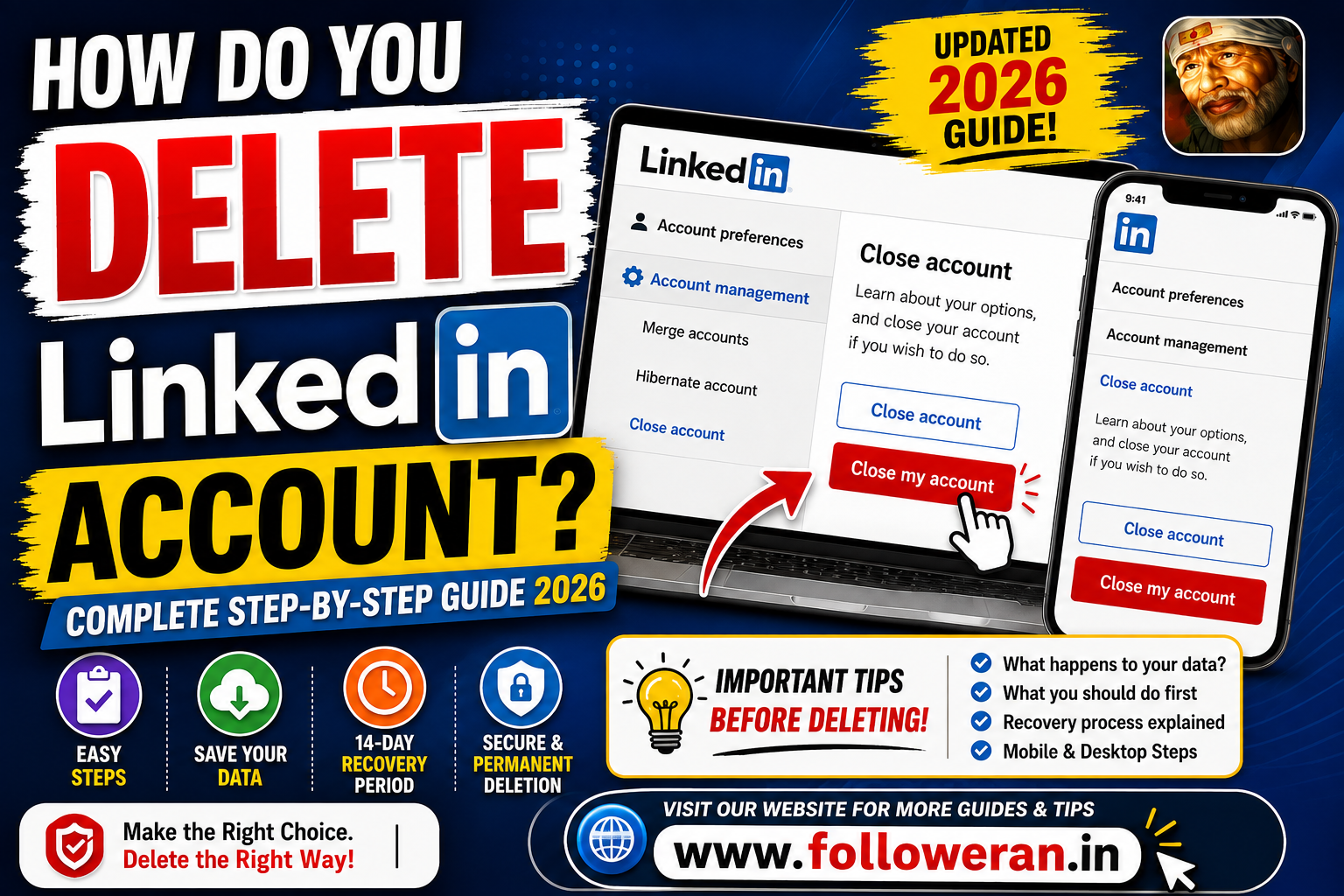
How Do You Delete LinkedIn Account? Complete Step-by-Step Guide
Searching for “how do you delete LinkedIn account” usually means you want to permanently close your LinkedIn profile and stop using the platform.
The process is fairly straightforward, but there are a few important things to understand before confirming deletion. LinkedIn's current account settings place the closure option under Account preferences → Account management, and LinkedIn also provides hibernation as an alternative when you want to temporarily step away rather than permanently close the account.
This guide explains how to delete a LinkedIn account on desktop and mobile, what happens afterward, what you should save first, and what options are available if you change your mind.
How Do You Delete LinkedIn Account on Desktop?
LinkedIn's current settings structure provides the following route:
Me → Settings & Privacy → Account preferences → Account management → Close account.
Follow these steps:
Step 1: Sign In to LinkedIn
Open LinkedIn and sign in to the account you want to close.
Step 2: Open Settings & Privacy
Select the Me menu from the LinkedIn homepage and choose Settings & Privacy.
Step 3: Open Account Preferences
In Settings & Privacy, select Account preferences.
LinkedIn's current settings documentation confirms that account-management options are located in this section.
Step 4: Find Account Management
Scroll to Account management.
This area contains options for managing or closing your account.
Step 5: Select Close Account
Choose Close account and follow the on-screen instructions.
Step 6: Select a Reason
LinkedIn may ask why you want to close your account.
Step 7: Confirm Your Identity
You may be asked to enter your LinkedIn password before the closure is completed.
Step 8: Confirm Account Closure
Complete the final confirmation.
Once the closure is confirmed, your LinkedIn account enters the closure process.
How Do You Delete LinkedIn Account on Mobile?
The LinkedIn mobile app uses a similar account-management structure.
A typical route is:
Profile picture → Settings → Account preferences → Account management → Close account.
The exact appearance of menus can vary slightly between app versions.
Mobile Steps
- Open the LinkedIn app.
- Tap your profile picture.
- Tap Settings.
- Select Account preferences.
- Open Account management.
- Select Close account.
- Follow the prompts.
- Confirm the account closure.
If the labels look different on your device, look for Account preferences, Account management or Close account.
What Happens When You Delete Your LinkedIn Account?
Closing your account has more consequences than simply removing the LinkedIn app from your phone.
LinkedIn says that when you close your account, you lose access to your LinkedIn account and its associated information. Its current Help documentation also notes that your purchase history will no longer be accessible.
You can also lose access to information such as:
- Connections
- Recommendations
- Endorsements
- Group memberships
- Followings
- Pending or ignored invitations
- Other account information
LinkedIn specifically states that some of these items cannot be restored even if you reopen the account within the recovery period.
Is Deleting LinkedIn the Same as Uninstalling the App?
No.
Deleting the LinkedIn app from your phone does not close your LinkedIn account.
Your profile and account can remain active even after the app has been removed from the device.
If you simply want fewer notifications or don't want to use LinkedIn for a while, you may not need to delete the account at all.
LinkedIn Account Deletion vs Hibernation
LinkedIn offers hibernation as an alternative to account closure.
| Option | Best For |
|---|---|
| Close account | Permanently leaving LinkedIn |
| Hibernate account | Taking a temporary break |
| Edit privacy settings | Limiting visibility |
| Turn off notifications | Reducing interruptions |
Think carefully before choosing permanent deletion.
If you're unsure whether you'll need the account again, hibernation may be worth considering.
What Should You Do Before Deleting LinkedIn?
A few minutes of preparation can save you from losing important information.
Download Your LinkedIn Data
LinkedIn currently provides a Download your data option under Data Privacy. The current Help documentation says you can request specific categories or a larger archive from your Settings & Privacy page.
The current desktop process is:
Me → Settings & Privacy → Data Privacy → Download your data → Request archive.
LinkedIn says some smaller data requests may arrive within minutes, while larger downloads may take longer, and the download link is time-limited.
Save Important Contacts
If LinkedIn is an important part of your professional network, save contact information for people you may want to reach later.
Save Important Messages
If you have useful professional conversations, consider preserving information you are legally and appropriately entitled to keep before closing the account.
Review Your Profile
Save anything you may need for:
- Resume preparation
- Job applications
- Portfolio work
- Professional biographies
- Contact records
Check Paid Services
If you have Premium or other paid LinkedIn services, review them before closing the account. LinkedIn notes that certain premium-related or account relationships may need to be resolved before account closure.
What If You Have LinkedIn Premium?
If your account has a Premium membership, LinkedIn says you may need to resolve the relevant subscription or account relationship before closing the account.
Review your billing and subscription information before attempting deletion.
This can help you avoid confusion about charges or remaining access.
What If You Own a LinkedIn Group?
LinkedIn notes that group ownership can affect account closure.
If you're the owner of a group, check whether you need to transfer or resolve that responsibility before closing your account.
This is especially important if you're the only person managing the group.
What If Your Account Is Connected to an Enterprise Product?
Some LinkedIn accounts are connected to enterprise services or organisational products.
LinkedIn's Help Center specifically lists situations where an account may need additional steps before it can be closed, including enterprise-related associations.
If the Close account option isn't working, check whether your profile has an enterprise relationship.
How Long Does LinkedIn Keep Your Data After Account Closure?
LinkedIn's current Privacy Policy says personal data will generally stop being visible to others on its services within 24 hours after account closure and that LinkedIn generally deletes closed-account information within 30 days, subject to exceptions.
However, LinkedIn may retain certain information when reasonably necessary for purposes such as:
- Legal obligations
- Regulatory requirements
- Security
- Fraud and abuse prevention
- Dispute resolution
- Enforcement of its User Agreement
LinkedIn also explains that some information you've shared with others may remain visible in certain situations, and information copied outside LinkedIn is outside its control.
Will Your LinkedIn Profile Disappear From Google Immediately?
Not necessarily.
Even after your LinkedIn profile is no longer visible on LinkedIn, search engines may temporarily continue to display older indexed information.
Search engines need time to refresh their indexes.
LinkedIn's privacy documentation also notes that a profile may continue to appear in other services until those systems refresh their cached information.
So don't panic if you see an old LinkedIn result in Google shortly after account closure.
Can You Recover a Deleted LinkedIn Account?
LinkedIn currently says that, in most cases, an account can be reopened if it has been closed for less than 14 days.
The reopening process generally involves signing in again and selecting the reactivation option.
However, some information cannot be recovered.
LinkedIn specifically lists:
- Group memberships
- Followings
- Ignored and pending invitations
- Endorsements
- Recommendations
as information that may not be restored after reopening.
This is why downloading your data before deletion is worth considering.
How Do You Reopen a Recently Closed LinkedIn Account?
If you changed your mind shortly after closure:
- Go to LinkedIn.
- Enter the email address associated with your account.
- Enter your password.
- Sign in.
- Select Reactivate if the option is offered.
- Follow LinkedIn's confirmation instructions.
LinkedIn says accounts closed for more than 14 days generally cannot be reopened.
What If You Just Want to Hide Your LinkedIn Profile?
Permanent deletion isn't always necessary.
Depending on your goal, you might prefer:
- Hibernation
- Reduced profile visibility
- Fewer notifications
- Removing individual information
- Updating privacy settings
LinkedIn's data-management documentation explains that users can delete specific types of data without necessarily closing the entire account.
This can be useful when you want to maintain the account but clean up your information.
What If You Only Want to Remove Some LinkedIn Data?
You may be able to delete individual categories without deleting your entire profile.
LinkedIn provides options for certain account data, including specific profile or activity information. Its data-deletion guidance explains that closing the account is the route for deleting all account data, while other information can sometimes be removed separately.
This is worth considering before taking the irreversible step of closing the account.
What If You Have Two LinkedIn Accounts?
LinkedIn does not allow multiple personal profiles for the same individual under its policies.
If you've accidentally created two profiles, you may have the option to merge or close a duplicate account instead of deleting everything.
LinkedIn's current settings documentation identifies account management as the place for merging multiple accounts or closing an account.
Review the duplicate-account process before deleting one.
What Happens to Your LinkedIn Connections?
When you close your account, you lose access to your LinkedIn connections.
That can be particularly important for:
- Recruiters
- Clients
- Former colleagues
- Business partners
- Professional contacts
If you expect to need these relationships later, save appropriate contact information before closing the account.
What Happens to Recommendations and Endorsements?
LinkedIn says endorsements and recommendations cannot be recovered even if you successfully reopen the account after closing it.
That makes them particularly important to consider before account closure.
What Happens to LinkedIn Group Memberships?
Group memberships are another item LinkedIn says may not be restored after reopening a recently closed account.
If you're active in important professional groups, consider whether you really want to leave them permanently.
What Happens to Your LinkedIn Purchase History?
LinkedIn's current Help documentation states that your purchase history will no longer be accessible after account closure.
If you need receipts or records for professional or accounting purposes, save them before closing your account.
What If You Can't Log In to LinkedIn?
If you've forgotten your password, you'll generally need to recover account access before completing the normal closure process.
LinkedIn provides password-reset and account-recovery options through its Help Center.
If you've lost access to your registered email address or have another account-access problem, use LinkedIn's official recovery process rather than providing your credentials to a third-party service.
What If You Signed Up With Google, Apple or Microsoft?
LinkedIn's current account-closure documentation notes that people who signed up using third-party credentials may need to unlink the associated account through the third-party provider's service.
This is particularly relevant if you're trying to clean up your online account connections completely.
Common Mistakes When Deleting a LinkedIn Account
Deleting Without Saving Your Data
You may lose access to useful information.
Forgetting Important Contacts
Your connections may no longer be available through LinkedIn.
Ignoring Premium or Enterprise Relationships
Certain account relationships may need to be resolved first.
Assuming Google Removes Everything Instantly
Search engines can take time to refresh indexed information.
Assuming Everything Can Be Recovered
Some data cannot be restored even during the 14-day reopening period.
Hibernating When You Actually Want Permanent Deletion
Make sure you understand the difference before confirming the option.
LinkedIn Deletion Checklist
Before you click Close account, review:
| Item | Recommended Action |
|---|---|
| Important data | Download an archive |
| Contacts | Save important information |
| Messages | Preserve anything you need |
| Premium | Review subscription |
| Groups | Check ownership/membership |
| Enterprise services | Resolve relevant relationships |
| Purchase history | Save receipts if needed |
| Duplicate accounts | Consider merging |
| Recovery | Understand the 14-day reopening window |
| Alternative | Consider hibernation |
How Do You Delete LinkedIn Account Without Losing Important Information?
The safest approach is to prepare first.
A practical sequence is:
Review account
↓
Download important data
↓
Save essential contacts
↓
Check subscriptions and relationships
↓
Consider hibernation
↓
Close account
This approach helps you avoid making a permanent decision before preserving information you still need.
How Do You Delete LinkedIn Account Permanently?
The actual closure process is relatively short:
Desktop:
Me → Settings & Privacy → Account preferences → Account management → Close account
Mobile:
Profile picture → Settings → Account preferences → Account management → Close account
Then follow the confirmation prompts.
The important part is not finding the button.
The important part is understanding the consequences before pressing it.
Frequently Asked Questions
How do you delete LinkedIn account?
Sign in to LinkedIn, open Settings & Privacy, go to Account preferences → Account management, select Close account, and complete the confirmation process.
How do you delete LinkedIn account on mobile?
Open the LinkedIn app, tap your profile picture, open Settings, go to Account preferences → Account management, select Close account, and follow the prompts.
Is deleting LinkedIn permanent?
Account closure is intended to permanently close the account, although LinkedIn says most accounts can generally be reopened within 14 days. Some information cannot be recovered.
Can I recover my LinkedIn account after deleting it?
Usually, only within the first 14 days after closure. LinkedIn says accounts closed for more than 14 days generally cannot be reopened.
What information cannot be recovered?
LinkedIn lists group memberships, followings, ignored and pending invitations, endorsements and recommendations among information that cannot be restored after reopening.
How long does LinkedIn keep my data after deletion?
LinkedIn says personal data generally stops being visible to others within 24 hours and closed-account information is generally deleted within 30 days, subject to exceptions.
Will my LinkedIn profile disappear from Google immediately?
Not necessarily. Search engines may continue showing indexed information until their caches and indexes are refreshed.
Should I download my LinkedIn data before deleting my account?
Yes, especially if you need your connections, profile information, messages or other account data later. LinkedIn provides a data-download tool through Settings & Privacy.
What happens to my LinkedIn connections when I delete my account?
You lose access to your LinkedIn account and connection list after closure. LinkedIn also notes that account information associated with the profile is removed as part of the closure process.
What happens to LinkedIn recommendations and endorsements?
They are removed, and LinkedIn says they cannot be recovered even if you reopen the account within the eligible period.
Can I hibernate LinkedIn instead of deleting it?
Yes. LinkedIn provides hibernation as an alternative to closing the account.
Can I delete only some of my LinkedIn data?
In many cases, yes. LinkedIn provides separate controls for certain data categories, while closing the account is the option for deleting all account data.
What if I have LinkedIn Premium?
Review your subscription and any related account requirements before attempting to close the account. LinkedIn notes that Premium relationships may need to be resolved first.
What if I own a LinkedIn group?
Check your group ownership before closing the account because LinkedIn notes that group ownership can affect the closure process.
What if my LinkedIn account is connected to an enterprise account?
You may need to resolve the enterprise relationship before account closure is possible. LinkedIn's Help Center specifically documents enterprise-related closure issues.
Does uninstalling LinkedIn delete my account?
No. Uninstalling the mobile application removes the app from your device but does not close the LinkedIn account.
Do I need my password to close LinkedIn?
LinkedIn's current closure instructions indicate that you may need to enter your password to confirm the closure.
Final Thoughts
The answer to “how do you delete LinkedIn account” is straightforward:
Desktop:
Me → Settings & Privacy → Account preferences → Account management → Close account
Mobile:
Profile picture → Settings → Account preferences → Account management → Close account
Before closing the account, however, think about what you may lose.
Download important data, save essential professional contacts, review Premium or enterprise relationships, and consider whether hibernation or selective data deletion would solve your problem without permanently closing the account.
LinkedIn currently says most recently closed accounts can be reopened within 14 days, but certain information cannot be recovered.
LinkedIn's privacy policy also says personal data generally stops being visible within 24 hours and closed-account information is generally deleted within 30 days, subject to legitimate retention exceptions.
Because LinkedIn periodically changes its interface, use LinkedIn's own Help Center as the final reference if the wording or location of a setting differs on your device.
For more digital-marketing, social-media and online-platform guides, visit www.followeran.in.
