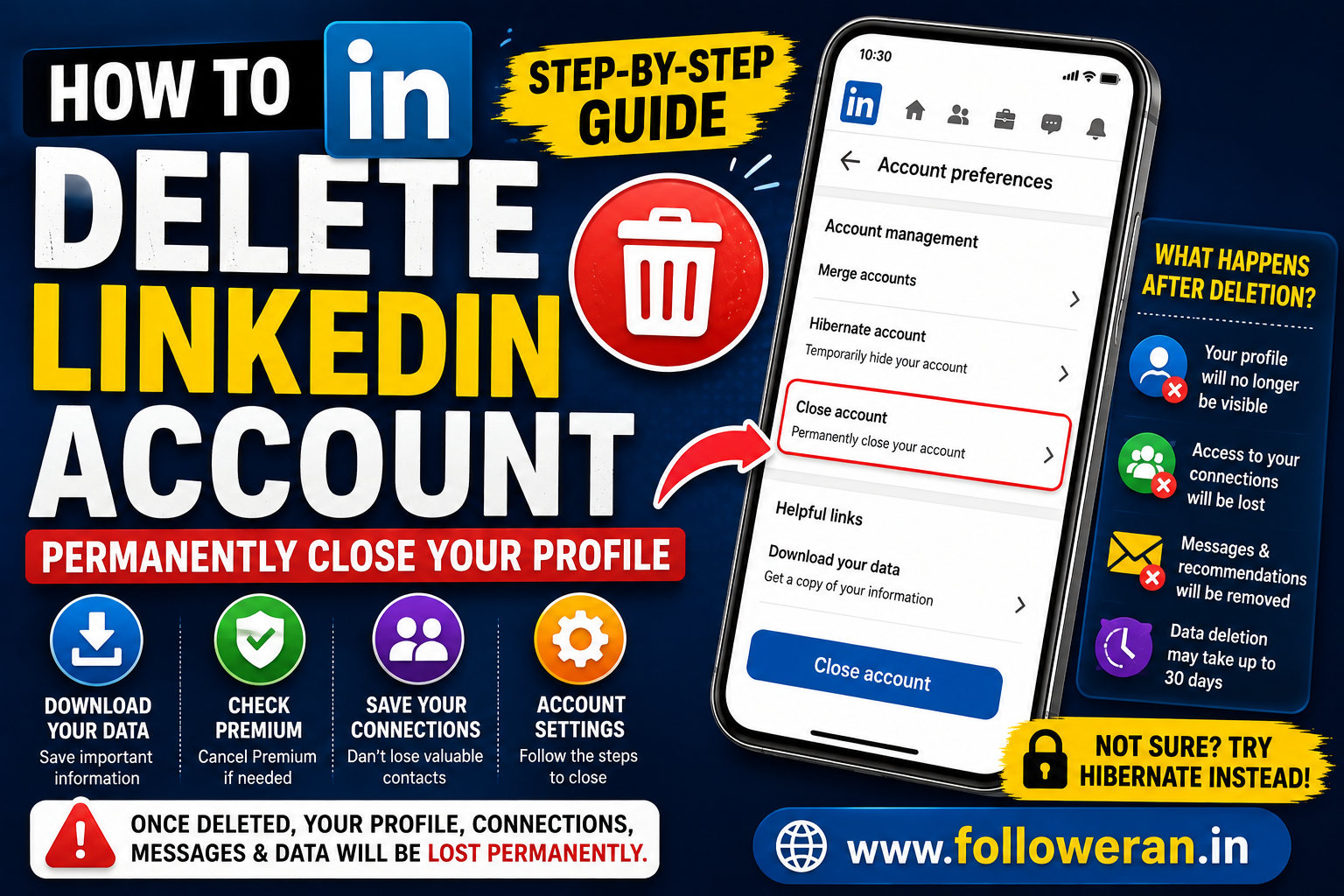
Delete LinkedIn Account: Step-by-Step Guide for Desktop and Mobile
If you want to delete LinkedIn account information and permanently leave the platform, LinkedIn provides a built-in account-closure option.
Closing a LinkedIn account is different from cancelling Premium or temporarily stepping away from LinkedIn. LinkedIn says closing your account permanently removes your profile and access to your LinkedIn information, while hibernation is intended as a temporary alternative.
Before You Delete Your LinkedIn Account
Take a few minutes to prepare before confirming account closure.
Download Important Data
Save information you may want later, such as your connections, messages, profile information and other account records. LinkedIn recommends downloading a copy of your data before closing an account.
Check Premium
If you have LinkedIn Premium but simply want to stop paying for it, you don't necessarily need to delete your account. LinkedIn says Premium can be cancelled while retaining the free Basic account, including your profile and connections.
Check for Other LinkedIn Services
If you have an enterprise-related account, Premium licence, group ownership or other LinkedIn services, you may need to resolve those items before closing the account.
Check for Duplicate Accounts
If you accidentally created two LinkedIn accounts, consider whether merging them is more appropriate than simply deleting one. LinkedIn provides specific guidance for duplicate accounts.
How to Delete LinkedIn Account on Desktop
LinkedIn's current instructions use the following route:
Me → Settings & Privacy → Account preferences → Account management → Close account.
Step 1: Sign In
Open LinkedIn and sign in to the account you want to close.
Step 2: Open Settings & Privacy
Click the Me icon at the top of the LinkedIn homepage and select Settings & Privacy.
Step 3: Open Account Preferences
Go to Account preferences.
Step 4: Find Account Management
Under Account management, look for Close account and select Change.
Step 5: Select a Reason
LinkedIn will ask why you're closing the account. Select the applicable reason and continue.
Step 6: Confirm Your Password
Enter your LinkedIn password when requested.
Step 7: Complete the Closure
Select the final confirmation option to close the account.
How to Delete LinkedIn Account on Mobile
LinkedIn's current mobile instructions are:
Profile picture → Settings → Account preferences → Close account.
Then:
- Tap Close account under Account management.
- Tap Continue.
- Select your reason.
- Tap Next.
- Enter your password.
- Tap Done.
The exact wording and placement may vary slightly between iOS, Android and mobile-browser versions.
What Happens After You Delete LinkedIn?
Closing your account has several consequences.
LinkedIn says you will lose access to:
- Your profile
- Your connections
- Your LinkedIn information
- Recommendations and endorsements
- Certain account history and records
Your profile will no longer be visible on LinkedIn, although search engines such as Google and Bing may continue displaying information temporarily while their indexes update.
Is LinkedIn Data Deleted Immediately?
Not necessarily.
LinkedIn's current Privacy Policy says personal data will generally stop being visible to others on LinkedIn within 24 hours, while closed-account information is generally deleted within 30 days, subject to legal, security, fraud-prevention and other retention exceptions.
Information you've already shared with other members, such as messages or group posts, may remain visible because other members can retain copies.
Can You Reopen a Closed LinkedIn Account?
LinkedIn currently says that in most cases you can reopen a closed account if it has been closed for less than 14 days. However, some information cannot be restored, including endorsements, recommendations, ignored or pending invitations, followings and group memberships.
Because of these limitations, download important information before closing the account.
Delete LinkedIn Account vs Hibernate
Deleting your account and hibernating it are not the same.
| Option | What Happens |
|---|---|
| Close account | Permanently closes the account |
| Hibernate account | Temporarily hides your account |
| Cancel Premium | Keeps your account but removes Premium benefits |
LinkedIn's hibernation option can hide your profile while allowing you to return later.
If you're unsure about leaving permanently, hibernation may be a better option.
What Happens to LinkedIn Connections?
Closing the account means you lose access to your LinkedIn connections and other account information. LinkedIn explicitly warns users that this information won't remain available after closure.
Before deleting the account, save important professional contacts elsewhere.
What Happens to Recommendations and Endorsements?
LinkedIn says closing your account deletes recommendations and endorsements you've given or received.
These cannot simply be recreated by reopening the account later in all cases.
What If You Have LinkedIn Premium?
If your goal is only to stop the subscription, don't delete the account unnecessarily.
LinkedIn says Premium can be cancelled while the account returns to the Basic plan, allowing you to keep your profile, connections and other account information.
What If You Own a LinkedIn Group?
Before closing your account, review any groups you manage.
LinkedIn's duplicate-account guidance notes that group owners may need to close or transfer group ownership before an account can be closed in certain circumstances.
What If You Have an Enterprise LinkedIn Account?
Some enterprise arrangements can prevent straightforward account closure.
LinkedIn specifically identifies enterprise accounts and related products such as Recruiter, Learning and Sales Navigator as situations where additional action may be required.
Resolve any outstanding enterprise requirements before trying again.
What If You Have Two LinkedIn Accounts?
If you have duplicate accounts, deleting one isn't always the best first step.
LinkedIn provides a merge process for eligible duplicate accounts. Some information does not transfer during a merge, so download an archive before proceeding.
What If You Forgot Your LinkedIn Password?
You need access to the account to follow the normal closure process.
If you've forgotten your password, use LinkedIn's official password-recovery process first. LinkedIn's account-management guidance directs users who cannot sign in to recover access before completing account-related actions.
Avoid websites or individuals claiming they can bypass LinkedIn security.
Can You Delete LinkedIn Without Losing Your Profile Information?
No. Closing the account is intended to remove the profile and associated account access.
If your goal is simply to reduce visibility, stop notifications or temporarily leave LinkedIn, consider changing privacy settings or hibernating the account instead. LinkedIn's privacy settings provide controls for how your information is displayed and used.
What If You Only Want to Remove Some LinkedIn Data?
Deleting the entire account isn't your only option.
LinkedIn says users have controls for deleting or managing certain personal data without necessarily closing the entire account.
This can be useful if your concern is a particular piece of information rather than your whole LinkedIn presence.
Delete LinkedIn Account Checklist
Download important LinkedIn data.
Save important professional contacts.
Review messages and other information you may need.
Check Premium.
Check enterprise services.
Review group ownership.
Check for duplicate accounts.
Decide whether hibernation is sufficient.
Open Settings & Privacy.
Go to Account preferences.
Open Account management.
Select Close account.
Confirm your password and closure.
Common Mistakes When Deleting LinkedIn
Avoid:
- Deleting the wrong account
- Forgetting to save important contacts
- Closing the account when you only wanted to cancel Premium
- Ignoring duplicate-account options
- Forgetting enterprise services
- Assuming search-engine results disappear immediately
- Expecting all deleted information to be recoverable
- Giving your password to an unofficial “account recovery” service
Frequently Asked Questions
How do I delete my LinkedIn account?
Sign in, select Me → Settings & Privacy → Account preferences → Account management, then choose Close account and complete LinkedIn's confirmation process.
Can I delete my LinkedIn account from my phone?
Yes. LinkedIn's current mobile instructions use Profile picture → Settings → Account preferences → Close account.
What happens to my connections if I delete LinkedIn?
You lose access to your LinkedIn connections and account information when the account is closed.
Does LinkedIn delete my data immediately?
LinkedIn says information generally stops being visible to others within 24 hours and closed-account information is generally deleted within 30 days, subject to stated exceptions.
Can I cancel LinkedIn Premium without deleting my account?
Yes. You can cancel Premium and keep a Basic LinkedIn account with your profile and connections.
Can I reopen a deleted LinkedIn account?
LinkedIn says most accounts can be reopened if they have been closed for less than 14 days, but some information cannot be recovered.
Is hibernating LinkedIn better than deleting it?
Hibernation is more appropriate when you want to temporarily hide your profile and potentially return later.
Final Thoughts
If you want to delete LinkedIn account information permanently, use LinkedIn's official Settings & Privacy → Account preferences → Account management → Close account process.
Before confirming, download important information, save professional contacts, check Premium and other LinkedIn services, and make sure you don't actually need hibernation or a duplicate-account merge instead.
LinkedIn's current Privacy Policy says your profile generally stops being visible within 24 hours and closed-account information is generally deleted within 30 days, although certain information may be retained for legal, security or other legitimate reasons.
For more social-media and digital-marketing resources, visit www.followeran.in.
